
Zero downtime. Pay as you go. Your choice of hardware.
Switch to Click2Call
Moving your business phone system is simpler than you think. Keep your existing number, keep your existing desk phones if you want them, and be up and running within days.
Key Takeaways
- Zero downtime: Your existing number stays active during the entire porting process.
- No hardware required: Use our free PC and mobile apps, or connect your own SIP-compatible desk phones.
- Keep your number: We port numbers from Telstra, Optus, TPG, and all other major Australian carriers.
- Simple setup: Create an account, add a temporary number, configure your users, and test before you port.
- No IT support needed: The system is designed for self-setup, with our Australian support team ready to help if needed.
Start here — takes 2 minutes
- 1Create your Click2Call account
- 2Add a phone number
- 3Test calls on your mobile or computer
- 4Then port your existing number
Who Is This For?
Click2Call is built for Australian businesses that want a reliable, modern phone system without the complexity or cost of traditional phone lines. It suits any business that makes and receives calls as part of their day-to-day operation — from a sole trader working from home to a small office with a team of ten.
It is particularly well suited to businesses that are currently paying for a Telstra, Optus, or TPG landline and want to move to a system that works on their existing computers and mobile phones. There is no need to buy new hardware, install anything on your network, or wait for a technician to visit.
If your team works across multiple locations, from home, or on the road, Click2Call gives everyone access to the same phone system regardless of where they are. Calls come in on your business number and can be routed to any device, anywhere.
What You Need to Get Started
There are no special requirements. If you have a reliable internet connection and a device to make calls on, you are ready to go.
Internet Connection
A standard NBN or business broadband connection is all you need. No dedicated phone lines required.
A PC or Smartphone
Our free softphone app runs on Windows and Mac. The mobile app is available for iOS and Android.
A Credit Card for Billing
Click2Call operates on a prepaid billing system. Add your credit card to load credit and enable auto top-up to cover your monthly flat-rate fees.
Exactly how to move your phone system
Create your Click2Call account at portal.click2call.com.au/join — takes 5 minutes, active within 24 hours.
Add credit and create a temporary phone number from the portal.
Test calls by diverting the new number to your mobile.
Divert your existing provider number to Click2Call.
We remotely configure your existing phones (if compatible).
Remove the mobile divert so your desk phones ring.
No disruption to your business
- Your current phone system stays active during the entire switch
- Calls continue as normal
- We run both systems in parallel
- No missed calls
What keeps working during the switch?
- Your current phone number — stays active until the exact moment the port completes.
- Your internet connection — phone and internet are separate; switching phones doesn't affect your broadband.
- Your EFTPOS machines — modern EFTPOS runs on internet/Wi-Fi, not phone lines.
- Your alarm systems — modern alarms use mobile networks or internet, not phone lines.
- Your existing contract — you only cancel your old provider after the new system is fully working.
How long does it take?
Day 1
- Create account
- New number is live
- Test calls
Day 1–2
- Phones and apps configured
Day 5–10
- Number port completes
- Old provider can be cancelled
Keeping Your Existing Number — How Porting Works
Number porting is the process of transferring your existing phone number from your current provider to Click2Call. It is a regulated process in Australia, which means all carriers are required to support it. We can port numbers from Telstra, Optus, TPG, Aussie Broadband, Vonex, and all other major Australian carriers.
The most important thing to understand about porting is that there is no downtime. Your number stays active on your current provider throughout the entire process. On the day the port completes, the number transfers to Click2Call seamlessly.
The porting process typically takes 5 to 10 business days from the time we lodge the request. We handle the paperwork — you just need to provide us with your current account details so we can submit the port request on your behalf.
Number Porting Timeline
Day 1 — Sign up and account activation
Create your account. Activation within 24 hours. Add a temporary new number to start using the system immediately if needed.
Day 1–3 — Port request lodged
We lodge the port request with your current carrier. Your existing number remains fully active throughout this period.
Day 5–10 — Port completes
Your number transfers to Click2Call. You receive a confirmation email. Calls now ring on your new system. No interruption to service.
After port — Cancel your old service
Once the port is confirmed, contact your old provider to cancel your line. Do not cancel before the port is complete.
Important: Do not cancel your existing phone service before the port is confirmed complete. Cancelling early can cause the port request to fail and may result in losing your number permanently.
PC App vs Mobile App — What Works Best
Click2Call provides a free app for both PC and smartphone. Understanding how each works will help you set up your team in the way that suits them best.
PC Softphone App
The PC app is our recommended solution for office-based staff. It is reliable for both inbound and outbound calling and integrates cleanly with your desktop workflow. Calls ring directly on screen, and you can manage transfers, hold, and call recording from the app interface.
Works on Windows and Mac. A USB headset is recommended for the best call quality, though the built-in microphone and speakers on most laptops work fine for everyday use.
Mobile App
The mobile app works well for outbound calls when your team is away from the office. However, we recommend against relying on it as the primary way to receive inbound calls. Push notifications on smartphones are not always reliable, which means incoming calls can be missed.
This is not a limitation specific to Click2Call — it is a general limitation of SIP apps on mobile operating systems. For reliable inbound call handling on mobile, use call forwarding instead.
Best Practice: Call Forwarding for Mobile Staff
The most reliable way to receive calls on a mobile phone is to route inbound calls directly to the staff member's actual mobile number. When a call comes in on your business number, Click2Call forwards it to the mobile number of your choice. The call rings just like a regular mobile call — no app required.
This approach gives your team the flexibility to work from anywhere without missing calls. Standard rates apply when calls are forwarded to an external mobile number. See our call flow setup guide for instructions.
Use your existing phones
- Most VoIP/IP phones work with Click2Call
- We can reconfigure them remotely
- No new hardware required in most cases
If unsure, we can confirm compatibility — call us on 1300 884 879.
Setup Options
You have two ways to get set up. Choose the option that suits your team and your level of technical confidence.
Self-Setup
FreeConfigure your own system using our step-by-step Help Centre guides. Each guide covers a specific task — activating your account, adding phone numbers, setting up users, configuring call routing, and installing the softphone.
Most customers complete the full setup in under an hour. If you get stuck at any point, our support team is available by phone and email to help.
View Help Centre guidesManaged Setup
$300 + GSTOur team configures everything for you. This includes setting up all user accounts, configuring your call routing and ring groups, installing and testing the PC softphone on each workstation, and setting up the mobile app on your team's phones.
We also lodge your number port request and monitor it through to completion. Once everything is set up and tested, we hand over a brief guide specific to your configuration.
One-off fee. Covers up to 3 users. Additional users are $50 + GST each. Indicate your preference at signup.
Do you need IT support?
- No — you can set this up yourself
- Step-by-step guides are available in our Help Centre
- Optional managed setup available for $300 + GST
- We can work with your existing IT provider
Example: Small business switch
To give you a concrete idea of what it costs to switch, here is a typical scenario for a small office moving from a Telstra landline to Click2Call.
Scenario: Small office, 3 users, 1 existing Telstra number to port
PC softphone for desk use, mobile app for outbound calls when out of office
All prices ex GST. Ongoing cost is $25/month per user.
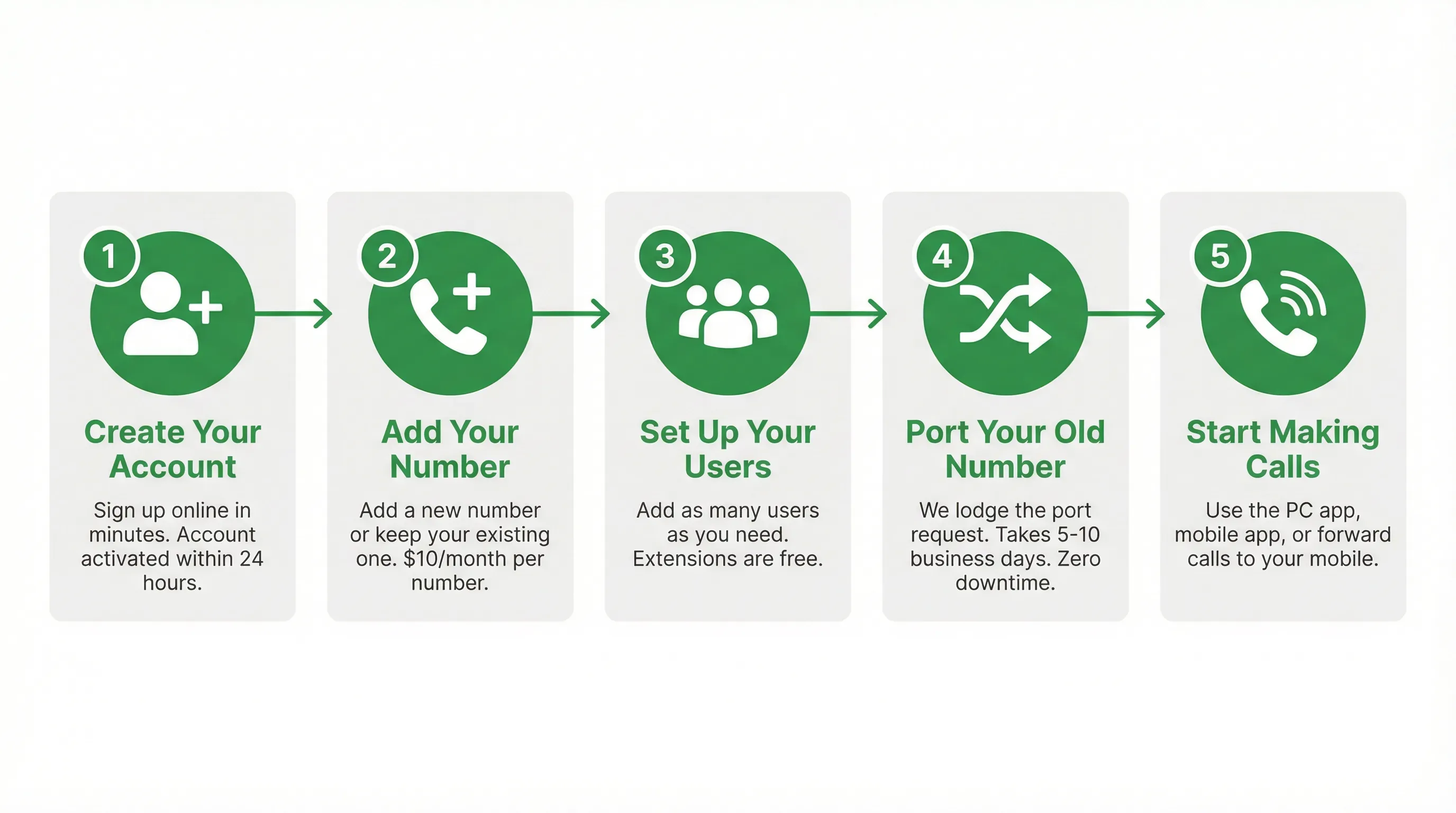
The 5-Step Changeover at a Glance
Frequently Asked Questions
New Customers
Ready to get started? Fill in our signup form — takes about 5 minutes.
Get Started FreeActivation takes up to 24 hours after signup