How to Add More Phone Lines (Channels)
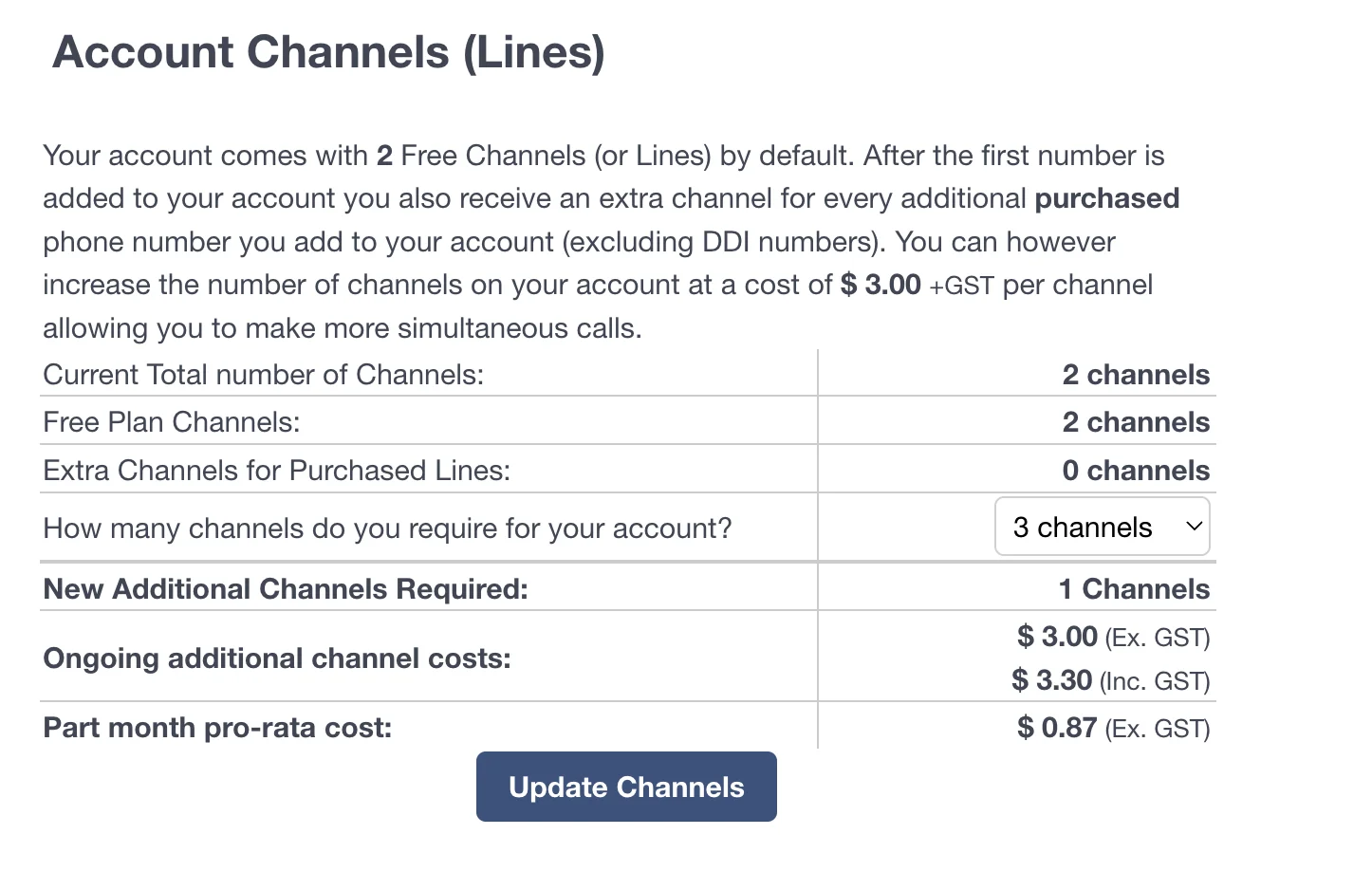
Increase your call capacity by adding more channels to your account, allowing more staff to be on the phone at the same time.
What are Channels?
Think of a channel as a single phone line. If you have two channels, your business can make or receive a maximum of two calls at the same time. If a third call comes in while both channels are busy, that caller will go to voicemail or hear a busy signal.
Every Click2Call account comes with 2 free channels by default. You also receive one extra free channel for every purchased phone number on your account (excluding Inbound Business Numbers).
How Many Channels Do I Need?
The number of channels you need depends on how many people will be on the phone simultaneously. A good rule of thumb for a typical office is to have 1 channel for every 3 to 4 users. For example, a business with 10 staff members would likely need around 3 or 4 channels to avoid congestion.
How Much Do They Cost?
If you need more channels than are included with your plan, you can add them at any time. Channels are included with your Cloud PBX User plan. The cost is pro-rated for the first month.
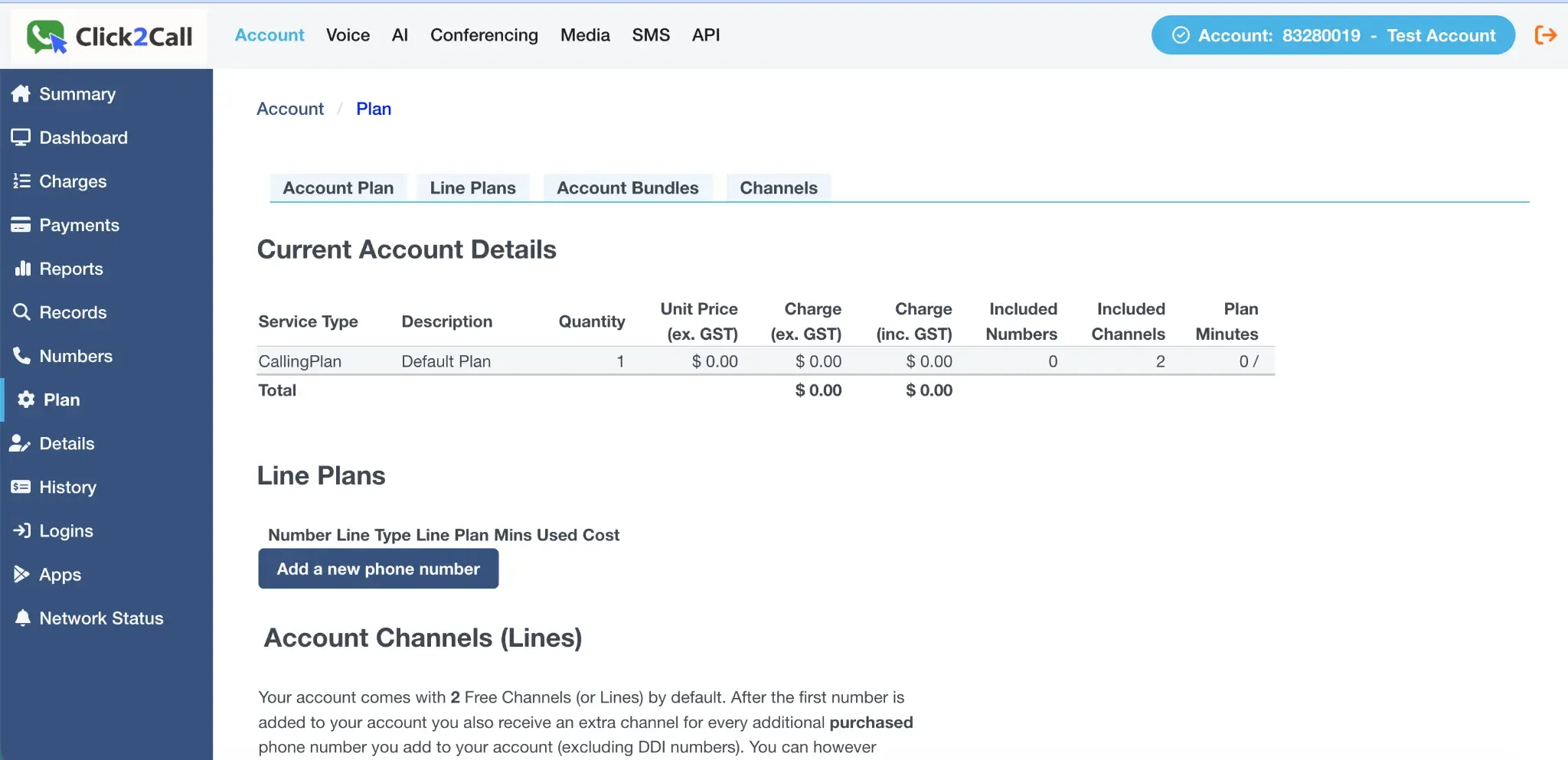
Navigate to the Plan Page
Log in to the portal, click the Account tab, and then select Plan from the left-hand navigation menu.
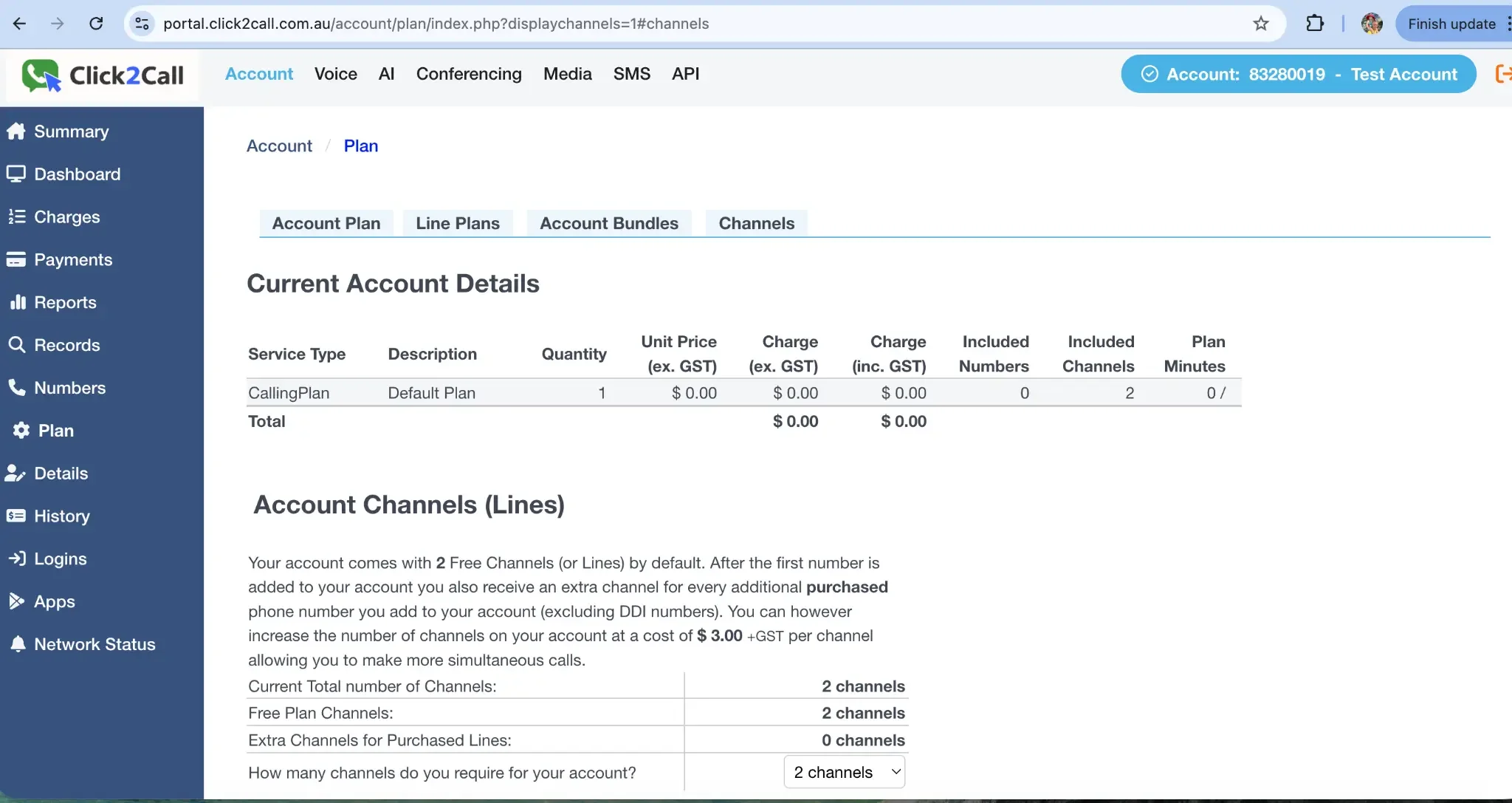
Select the Channels Tab
On the Plan page, click the Channels tab to view your current channel count and make changes.
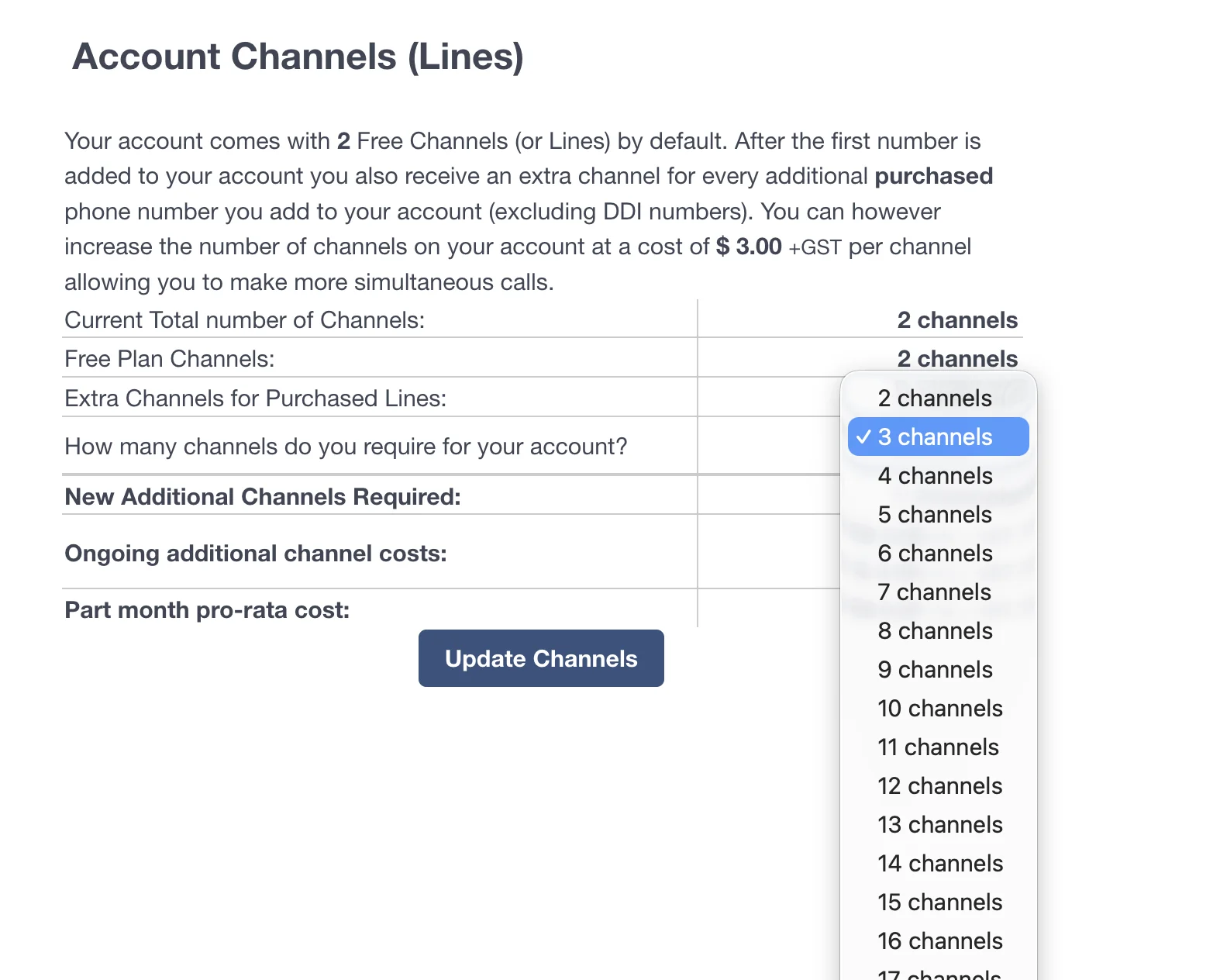
Choose the Total Number of Channels
From the dropdown menu, select the total number of channels you require for your account. The system will automatically calculate how many new channels are being added and the associated cost.
Update and Confirm
Review the ongoing and pro-rata costs for the new channels, then click the Update Channels button to confirm. The new channels will be active immediately.