
How to Make Your First Call
Before you can make an outbound call with Click2Call, you need two things: a phone number on your account (so you have a caller ID to display) and a registered device to dial from. This guide walks you through both steps and covers all three ways to make calls — softphone app, SIP desk phone, or diverting to your mobile.
Your 7-day trial includes $11 credit and 10 test calls
New accounts are loaded with $11 credit automatically — enough to make your first test calls without adding a payment method. Outbound calls to Australian mobiles and landlines are charged at standard per-minute rates.
What you need before making a call
A phone number
A local Australian number (02, 03, 07, or 08) or a 1300 number on your account. This is your outbound caller ID — what the person you call will see on their screen.
A registered device
A softphone app on your phone or computer, a SIP desk phone, or a mobile divert. You cannot make outbound calls without at least one registered device or divert.
Add a phone number to your account
If you have not added a number yet, log in to the portal and navigate to Account → Numbers. Click Add a new Number, select Australia as the country, choose your city (area code), select Voice as the line type, and choose a plan. Numbers cost $10.00/month ex GST.
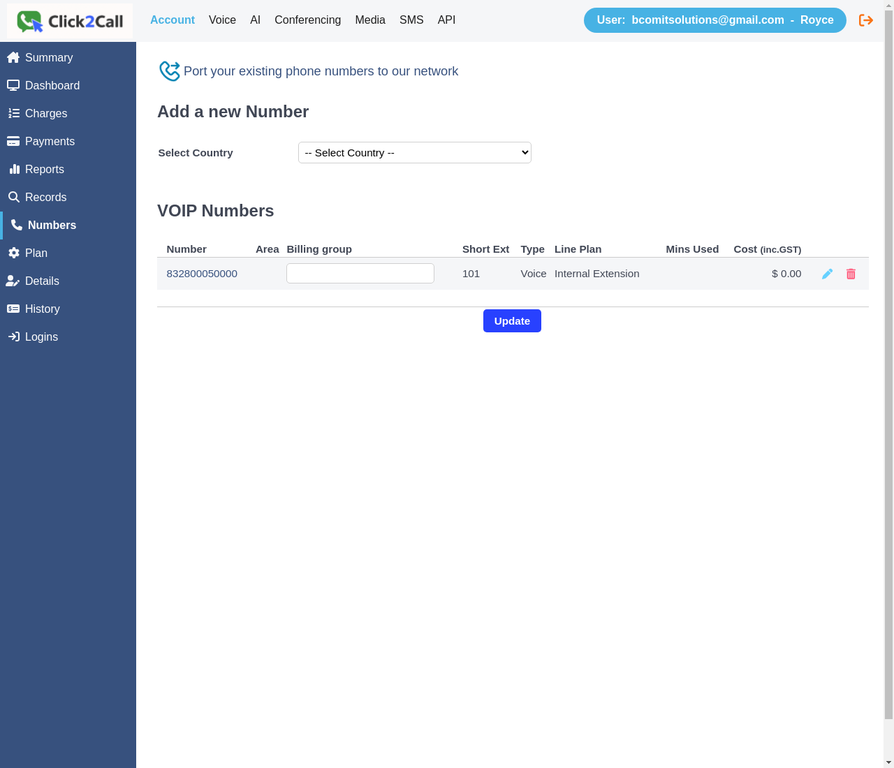
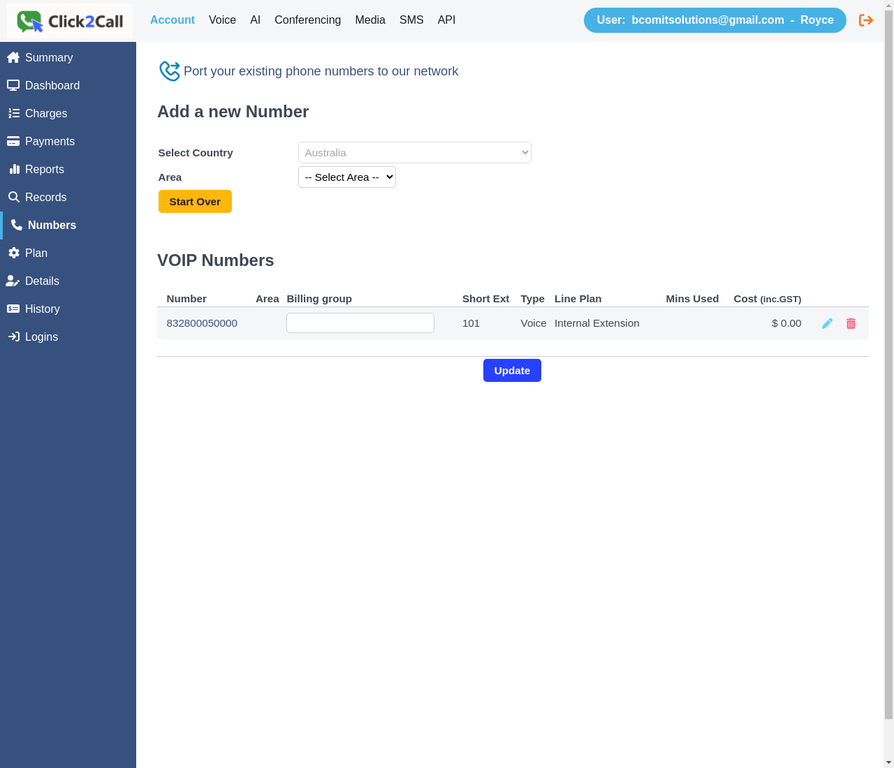
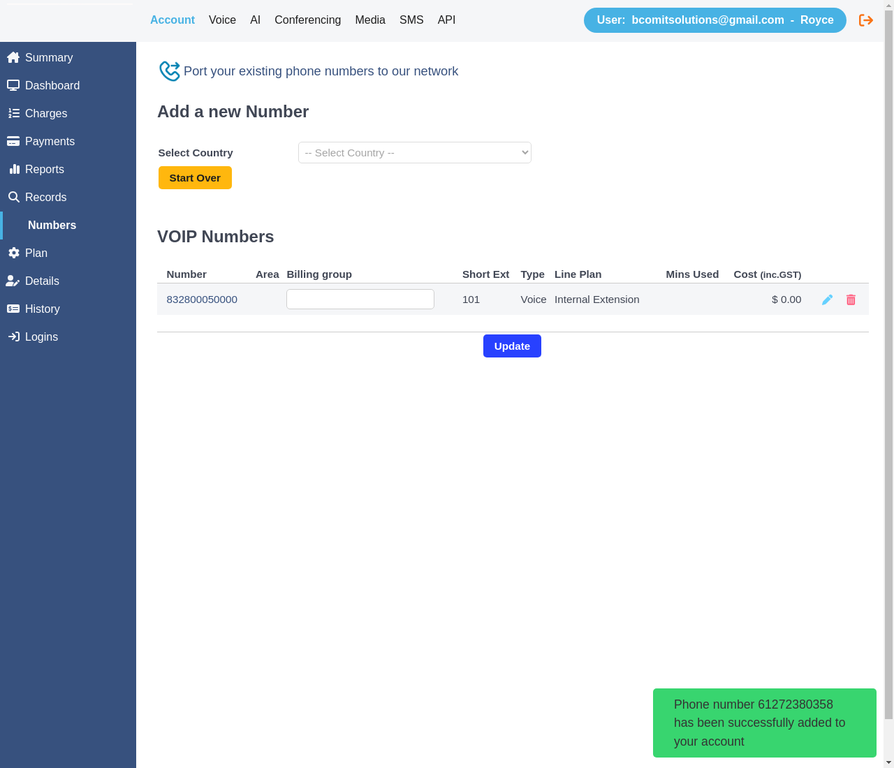
For a full walkthrough of every field, see the Adding a Phone Number guide.
Choose how you will make calls
Click2Call supports three ways to make and receive calls. Choose the option that best suits your setup — you can use more than one at the same time.
Option A — Softphone app
RecommendedA softphone app turns your smartphone or computer into a business phone. Calls go over your internet connection — no extra hardware needed. Click2Call recommends the Secure VoIP App for iPhone, Android, and Windows, and the Telephone App for Mac.
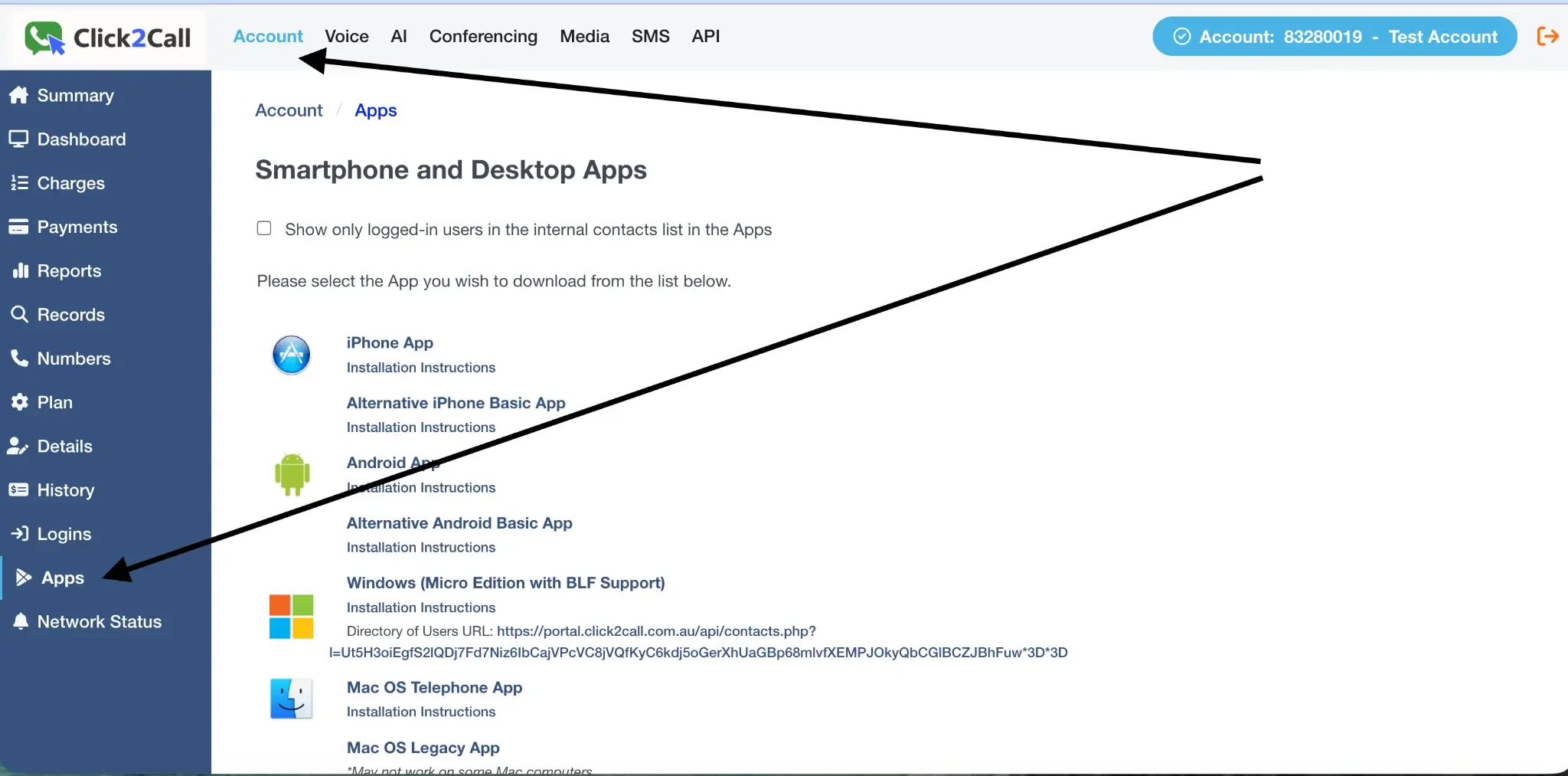
In the portal, go to Apps in the top navigation to find your download links and SIP credentials. For a full setup walkthrough, see the Setting Up a Softphone App guide.
Option B — SIP desk phone
A SIP-compatible desk phone (such as a Yealink, Grandstream, or Cisco) connects directly to your internet router and registers with Click2Call using your SIP credentials. You configure the phone via its built-in web interface by entering your SIP server, username, and password.
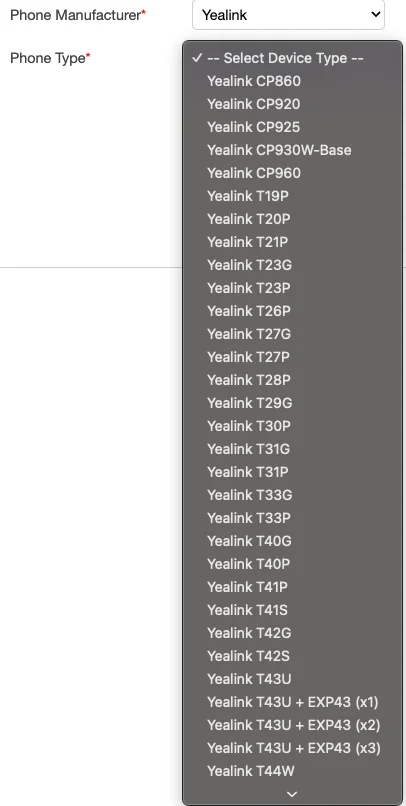
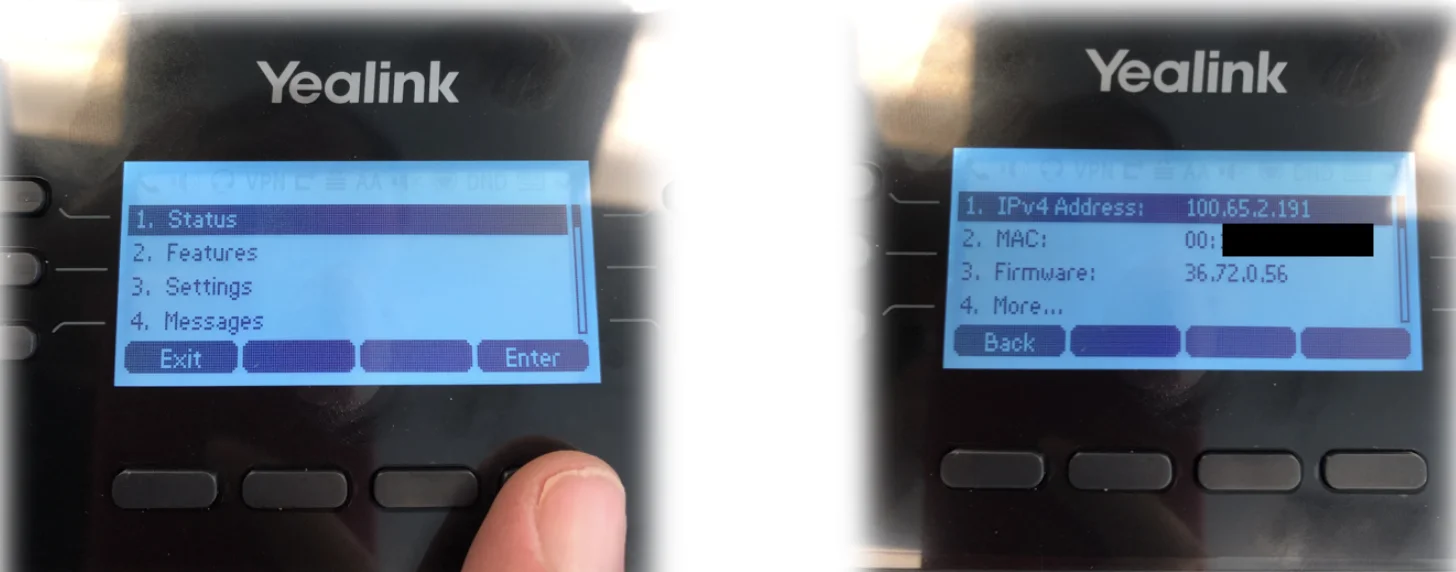
For a full step-by-step walkthrough including SIP server details, see the Registering a SIP Desk Phone guide.
Option C — Divert to mobile
If you do not want to install an app or configure a desk phone, you can divert inbound calls to your existing mobile number. Inbound calls to your Click2Call number will ring your mobile, and you can answer them normally.
Note: Diverting to mobile handles inbound calls only. To make outbound calls displaying your Click2Call number as the caller ID, you will need a softphone app or desk phone registered to your account.
To set up a divert, log in to the portal, go to Extensions → Edit for your extension, and enter your mobile number in the Call Forwarding field. You can also set up a call flow to ring your extension first, then divert to mobile if unanswered.
Confirm your outbound caller ID
Before making your first call, confirm that your outbound caller ID is set correctly. In the portal, navigate to Voice → Numbers and check that your number is listed and active. You can also set the outbound caller ID per-extension by going to Extensions → Edit and selecting the number from the Outbound Caller ID dropdown.
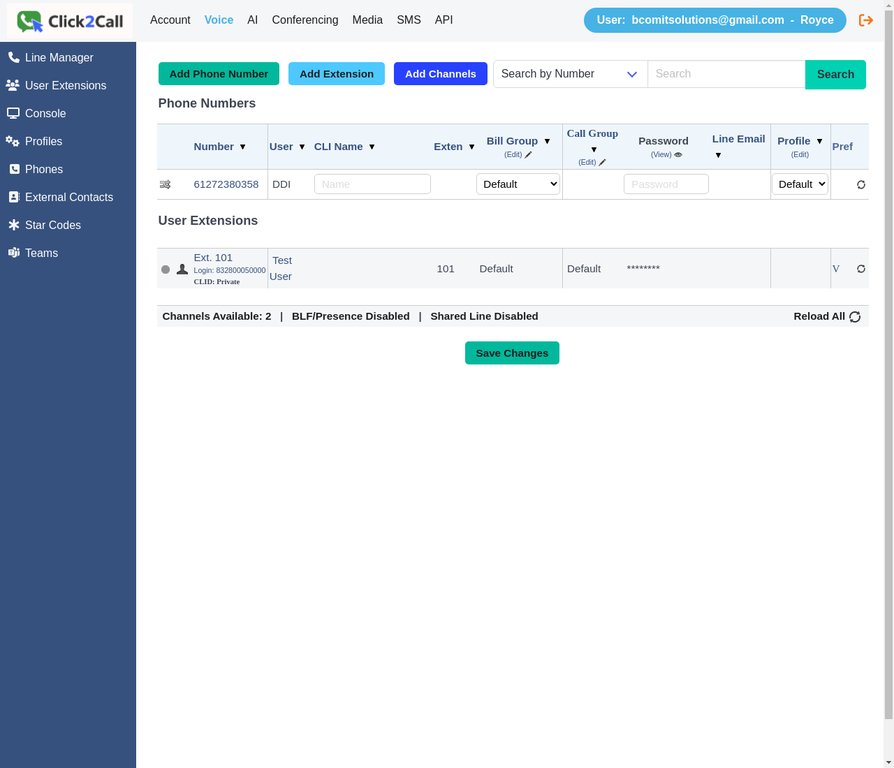
For more detail on caller ID configuration, see the Setting Your Outbound Caller ID guide.
Make your first call
Open your softphone app or pick up your desk phone. Dial any Australian number — mobile or landline — and press Call. Your Click2Call number will appear as the caller ID on the recipient's screen.
Dialling format
| Destination | Format to dial | Example |
|---|---|---|
| Australian landline | 0X XXXX XXXX | 02 9000 0000 |
| Australian mobile | 04XX XXX XXX | 0412 345 678 |
| 1300 / 1800 number | 1300 XXX XXX | 1300 884 879 |
| International | + [country code] [number] | +64 9 000 0000 |
Tip: Your trial account includes $11 credit. A call to an Australian mobile costs approximately $0.09/min, so you have around 120 minutes of test calls available. Check your balance at any time in the portal under Account → Summary.
Troubleshooting
Check that you are using your phone number (not your account email or account number) as the username. The format should match what is shown in the portal under Extensions — for example, 07 4444 1234.
Also confirm you are using your line password, not your account login password. You can reset your line password in the portal under Extensions → Edit.
In the portal, go to Extensions → Edit for your extension and check the Outbound Caller ID dropdown. Make sure it is set to the number you added in Step 1. If the dropdown is empty, the number may not yet be active — check Voice → Numbers to confirm it shows a green status.
On mobile, check that the app has been granted microphone permission. On iOS, go to Settings → Privacy → Microphone and ensure the app is enabled. On Android, go to Settings → Apps → [App name] → Permissions.
On desktop, check that the correct audio input and output devices are selected in the app settings. If you are behind a corporate firewall, your IT team may need to open UDP ports 10000–20000 for RTP audio traffic.
Your account balance has run out. Log in to the portal, go to Account → Payments, and add credit. We recommend enabling auto top-up so your balance is topped up automatically when it falls below a threshold you set. See the Adding Account Credit guide for details.
Related Guides
Still need help?
Our Australian support team is available to assist you.