
Setting Outbound Caller ID
By default, when you make an outbound call from an extension, your main account number is presented to the person you are calling. The Caller ID and Privacy settings let you change this on a per-extension basis — presenting a different number from your account, a verified external number, or hiding your number entirely for private calls.
Log in to the portal
Navigate to portal.click2call.com.au and sign in with your account credentials.
Open the extension’s Call Flow
Click Voice in the top navigation bar, then click on the extension you want to configure. This opens the Call Flow page for that extension, which shows the incoming and outgoing call routing diagram.
Select “Caller ID and Privacy” from the Outgoing Calls menu
On the Call Flow page, click the teal Incoming Calls dropdown button. A menu will appear showing both Incoming and Outgoing call options. Under Outgoing Calls, select Caller ID and Privacy.
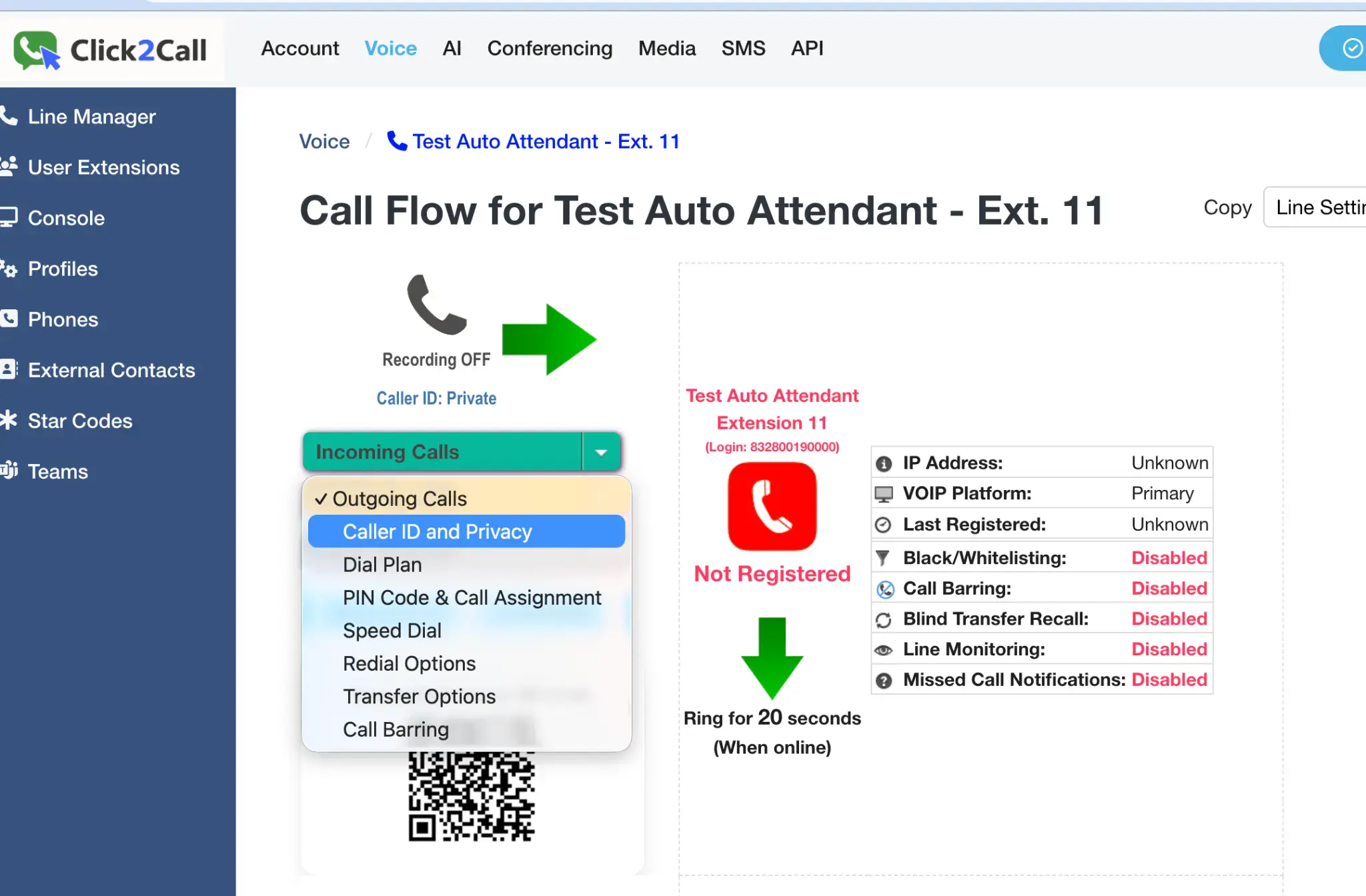
The Call Flow dropdown — select Caller ID and Privacy under Outgoing Calls
Choose your Caller ID type
The Caller ID and Privacy page will open. The first setting is a dropdown labelled Select the type of Caller ID you wish to present on outbound calls. The available options are:
| Option | What it does |
|---|---|
| Default | Presents the main account number (the default behaviour) |
| Present another phone number from my account | Choose a specific number from your account to display on outbound calls |
| Present a verified off-net number | Present an external number (e.g. a mobile) that has been verified as belonging to you |
| Random from a calling group | Rotate through multiple numbers from a defined calling group on each outbound call |
If you select Present another phone number from my account, a second dropdown will appear labelled On-net Phone number selection. Choose the number you want to present from the list of numbers on your account.
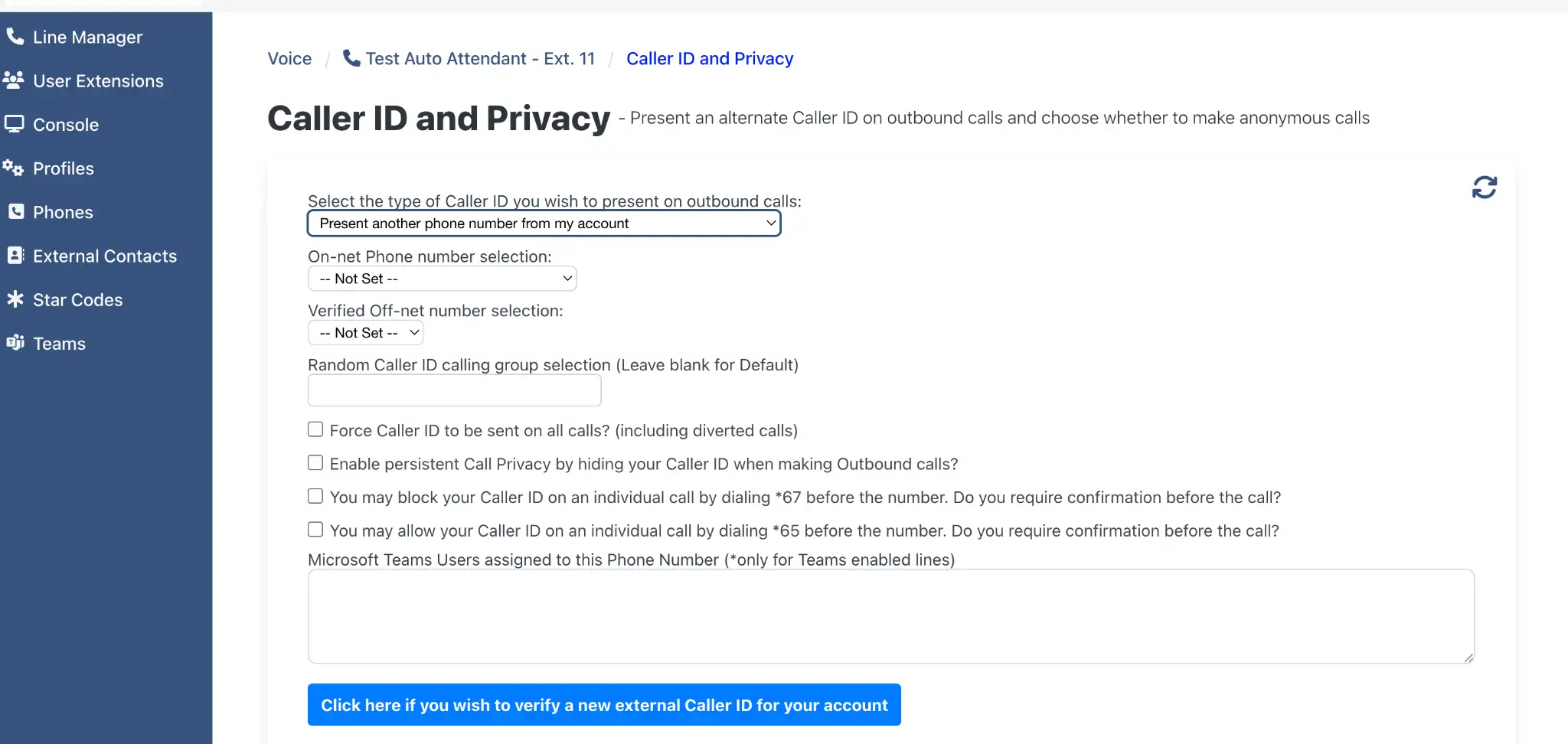
The Caller ID and Privacy settings page
Configure additional options
Below the Caller ID type dropdown, there are several additional options you can enable. Each is controlled by a checkbox:
Force Caller ID to be sent on all calls (including diverted calls)
When a call is diverted or forwarded to an external number such as a mobile, the caller ID can sometimes change. Ticking this option ensures your chosen caller ID is always presented, even when calls are diverted.
Enable persistent Call Privacy by hiding your Caller ID when making Outbound calls
Tick this to permanently suppress your number on all outbound calls from this extension. The person you call will see “Private Number” or “No Caller ID” on their screen.
Block Caller ID on an individual call by dialling *67 before the number
Enables the *67 star code. Dial *67 followed by the number to hide your caller ID for that single call only, without changing the persistent setting. You can optionally require a confirmation prompt before the call connects.
Allow Caller ID on an individual call by dialling *65 before the number
Enables the *65 star code. Useful when persistent privacy is enabled but you want to reveal your number for one specific call. Dial *65 followed by the number to show your caller ID for that call only.
Microsoft Teams Users: If this extension is assigned to a Microsoft Teams user, enter their Teams user details in the field at the bottom of the page. This is only required for Teams-enabled lines.
Verify an external number (optional)
If you want to present a mobile number or a number from another provider as your outbound caller ID, you first need to verify that the number belongs to you. Click the blue “Click here if you wish to verify a new external Caller ID for your account” button at the bottom of the page. The portal will guide you through the verification process, which typically involves receiving a call or SMS to confirm ownership.
Once verified, the number will appear in the Verified Off-net number selection dropdown and can be selected as your outbound caller ID.
Save your settings
Once you have configured your preferred options, click the refresh / save icon at the top right of the Caller ID and Privacy page to save your changes. The settings take effect immediately on the next outbound call made from this extension.
Note: You can only present numbers that belong to your Click2Call account, or external numbers that have been verified. You cannot present an arbitrary number that is not associated with your account.
Frequently Asked Questions
What is outbound caller ID?
Can I present a different number on outbound calls?
Can I make my number private or anonymous?
What does “Force Caller ID on diverted calls” mean?
What are the *67 and *65 star codes?
What is a Verified Off-net number?
Can I set a different caller ID for each extension?
Does this setting affect incoming calls?
Related Guides
Still need help?
Our Australian support team is available to assist you.