
Setting Up AI Agents
AI Agents vs AI Receptionist — what is the difference? The AI Receptionist is an automated call routing tool. It listens to what a caller says and transfers the call to the right department — a real person then answers. An AI Agent is fundamentally different: it holds a full, two-way conversation with the caller, answers questions, provides information about your business, and can handle entire calls without any human involvement. AI Agents are trained on your own business knowledge base.
AI Agents are conversational AI voice agents that answer incoming calls, greet callers, and respond to their questions in natural language — 24 hours a day, 7 days a week. This guide walks you through creating a Business Profile, configuring your first AI Agent, and assigning it to a phone number.
Log in to the portal
Navigate to portal.click2call.com.au and sign in with your user credentials.
Navigate to AI Agents
In the top navigation bar, click AI. In the left-hand sidebar, click AI Agents. You will see the AI Agents overview page, which shows a blue information banner explaining that you can train AI Voice Agents by uploading documents to your Knowledge Base. Before you can create an agent, you must first set up a Business Profile.
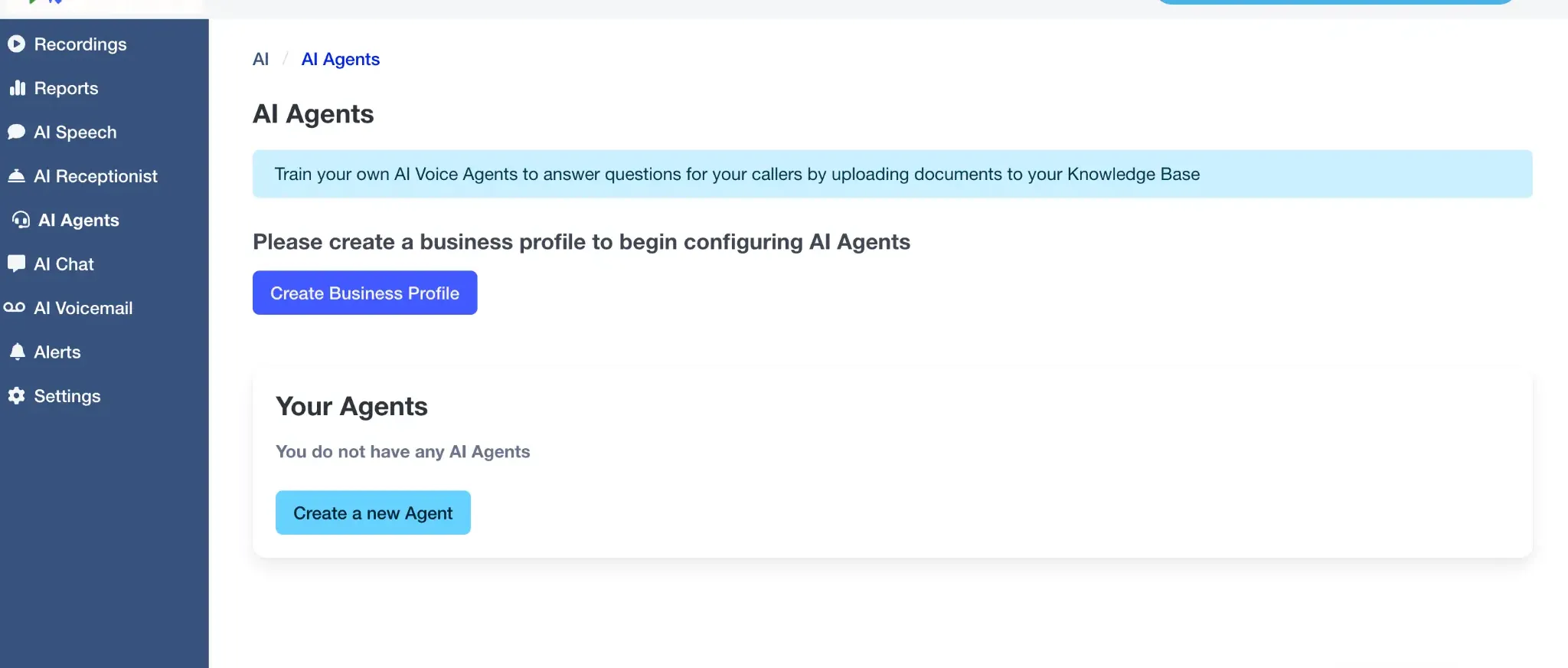
Create your Business Profile
Click the Create Business Profile button. The Business Profile is the knowledge base your AI Agent will draw on when answering caller questions. The more detail you provide here, the more accurately and helpfully your agent will respond. The profile is divided into several sections.
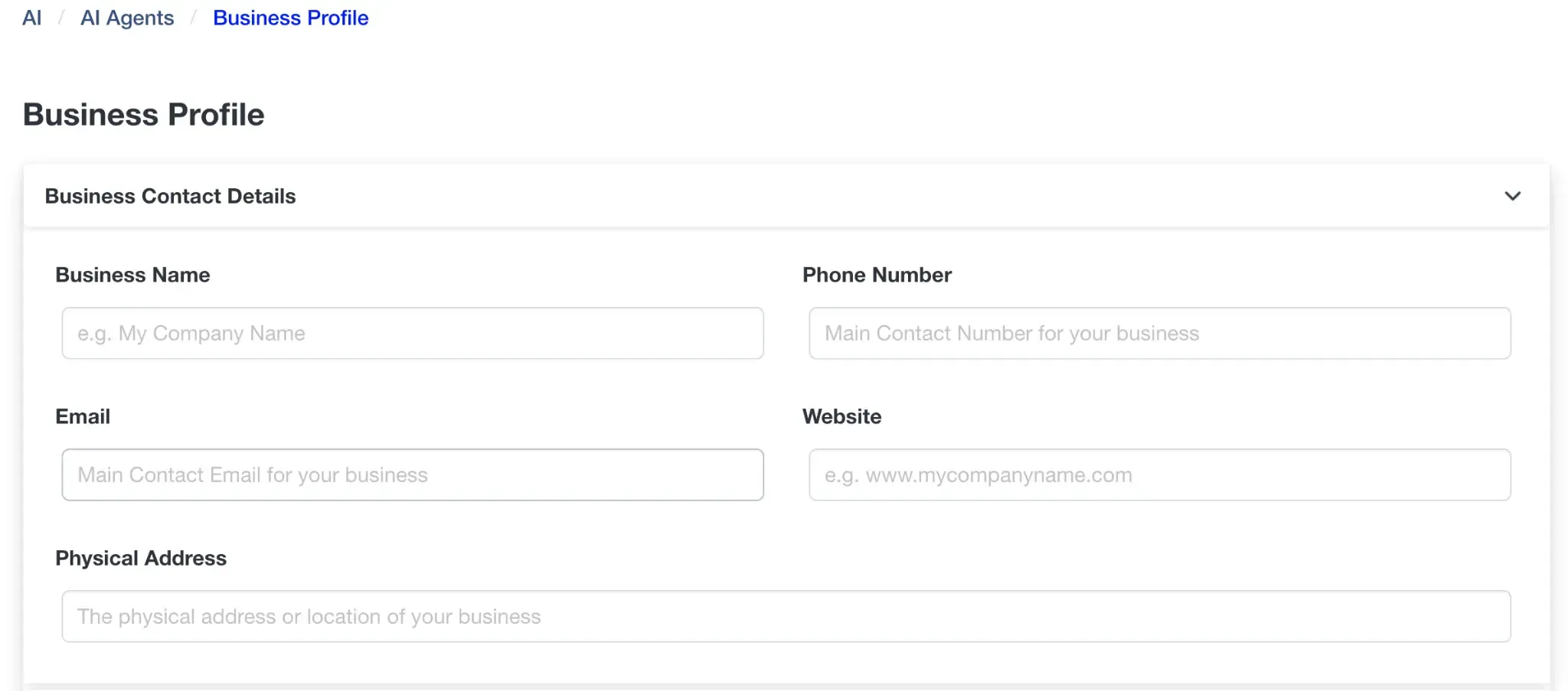
Complete each section of the Business Profile:
- Business Contact Details: Enter your Business Name, Phone Number, Email, Website, and Physical Address. This information allows the agent to tell callers how to contact your business.
- Business Category: Enter your industry type, for example Telecommunications, Accounting, or Retail. This helps the AI understand the context of your business.
- Business Description: Write a clear description of your business and any important information you want the agent to share with callers. Include your key services, what makes your business different, and any details callers commonly ask about.
- Operating Hours: Enter your Regular Operating Hours (for example, Monday to Friday, 8am to 6pm) and your Public Holiday Hours. The agent can use this information to tell callers when you are open.
- Products and Pricing: List the products and services your business offers. You can also include pricing information such as call-out fees or hourly rates, and the payment options you accept (credit card, bank transfer, etc.).
- Other Information: This large free-text field (up to 65,535 characters) is where you can add FAQs and any other information you want the agent to know. Format it as question-and-answer pairs for best results — for example: Q: Do you offer after-hours support? A: Yes, emergency support is available 24/7 by calling our after-hours line.
Once all sections are complete, save the Business Profile before proceeding.
Create a new Agent
Return to the AI Agents page and click Create a new Agent. The Create New Agent form will open. At the top right of the form, use the Enabled dropdown to set when the agent should be active — for example, At all times, or only during specific hours.
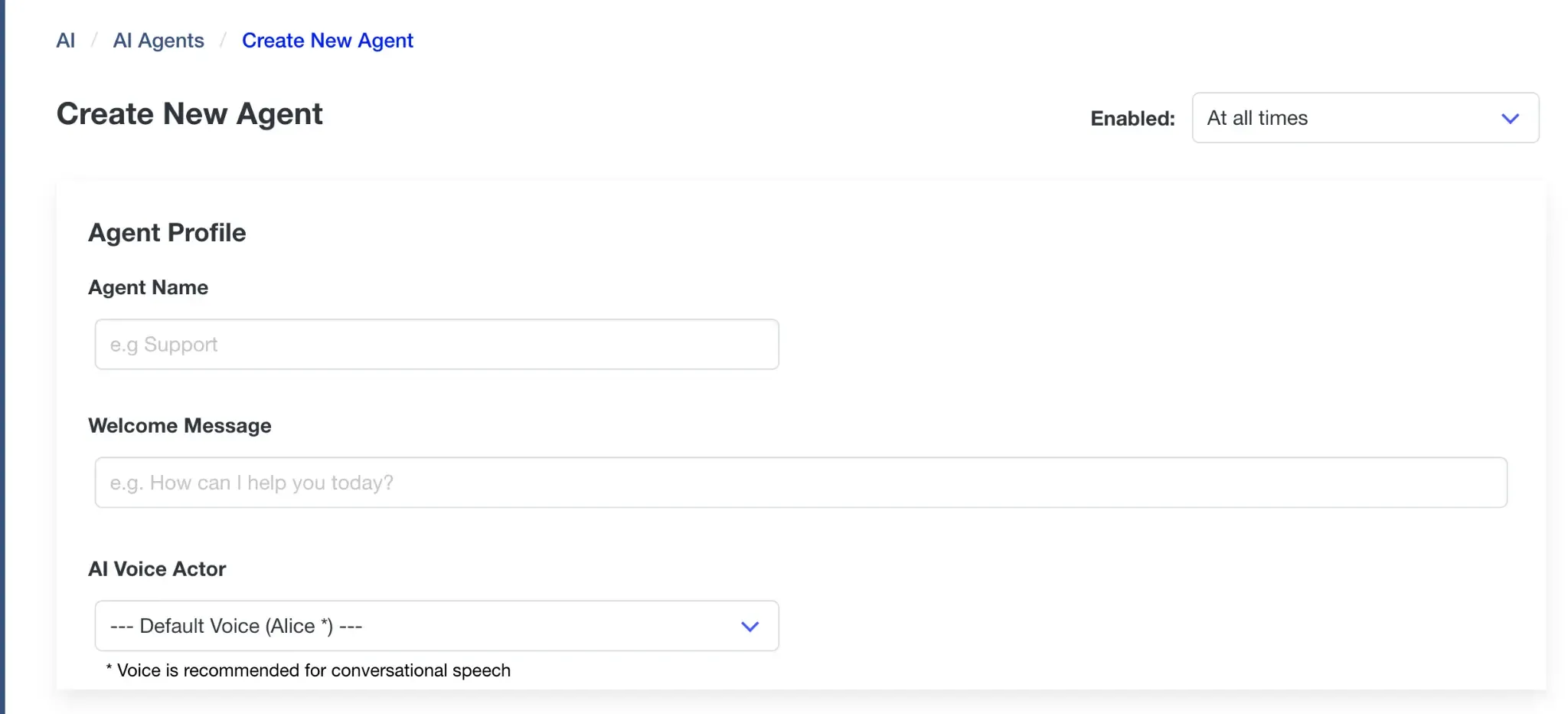
Fill in the Agent Profile section:
- Agent Name: Give the agent a name that reflects its role, for example Support, Sales, or General Enquiries. This name is used internally in the portal to identify the agent.
- Welcome Message: This is the first thing the agent says when a caller connects. Keep it short and natural — for example: Hi, thanks for calling. How can I help you today? The agent will then listen and respond to whatever the caller says.
- AI Voice Actor: Choose the voice the agent will use. The default is Alice, which is recommended for conversational speech. The voice selection affects how natural and engaging the agent sounds to callers.
Configure Agent Call Flow Settings
Scroll down to the Agent Call Flow Settings section. This is where you define which phone lines connect to the agent and what happens if a caller asks to speak to a human.
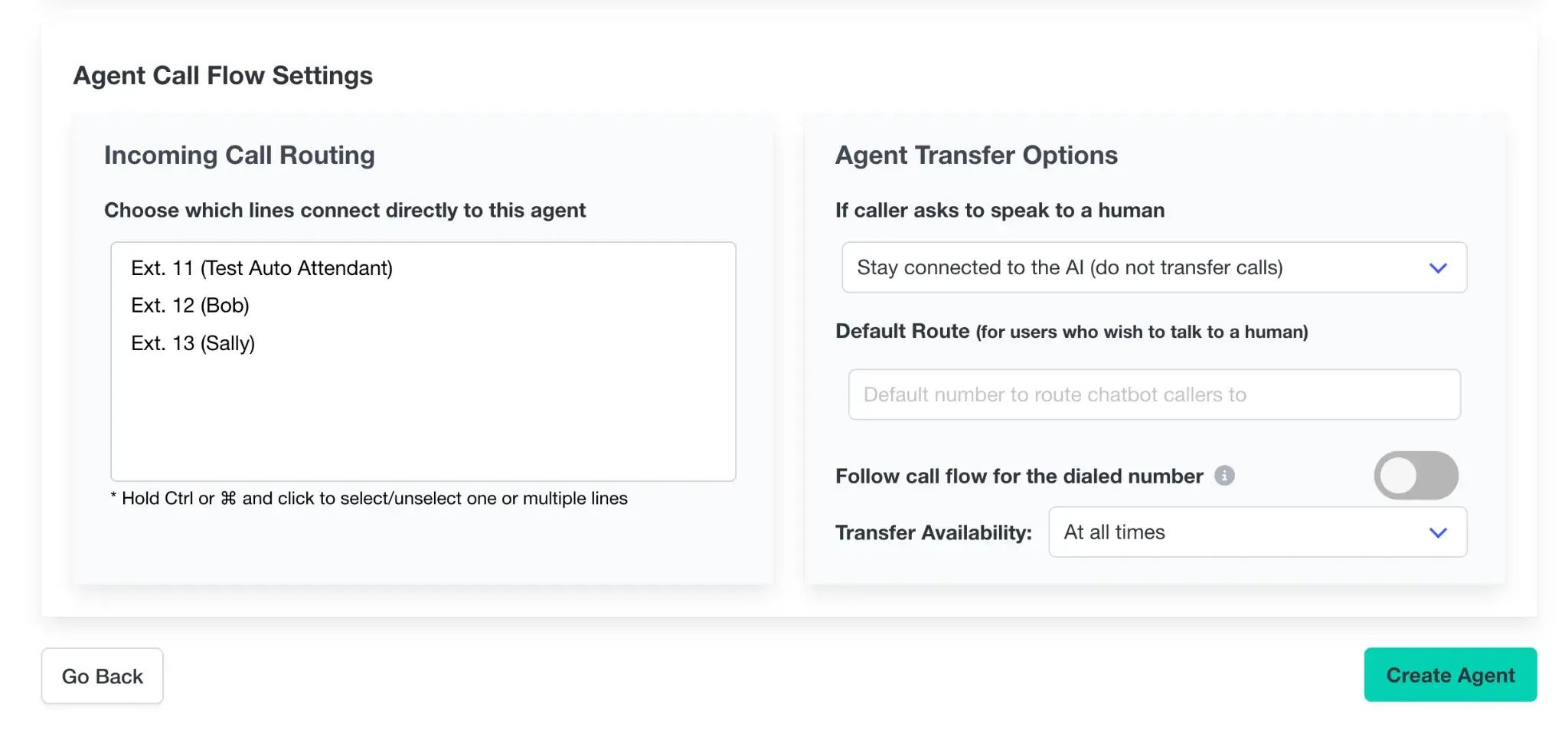
Configure the two panels:
- Incoming Call Routing: Select which of your extensions or phone lines should connect directly to this agent. Hold Ctrl (or Command on Mac) and click to select multiple lines. Any call arriving on a selected line will be answered by this AI Agent.
- If caller asks to speak to a human: Choose what happens when a caller requests a human. You can keep them connected to the AI, or set a Default Route — a phone number or extension where the call will be transferred. Use the Transfer Availability dropdown to control when transfers are permitted (for example, only during business hours).
- Follow call flow for the dialed number: Toggle this on if you want the agent to follow the existing call flow rules for the dialled number rather than handling the call independently.
When you are satisfied with the settings, click Create Agent at the bottom right of the page.
Test the AI Agent
Call one of the phone lines you assigned to the agent from an external phone. The agent should answer with the Welcome Message you configured. Speak naturally and ask a question that your Business Profile should be able to answer — for example, your business hours, your address, or a question about your services. Verify that the agent responds correctly and sounds natural.
If the agent does not answer a question accurately, return to the Business Profile and add more detail to the relevant section. For frequently asked questions, the Other Information field is the most effective place to add specific Q&A pairs. Changes to the Business Profile take effect immediately — no need to recreate the agent.
Also test the human transfer scenario by saying "Can I speak to someone?" or "I'd like to talk to a person" during the call. Confirm the call is handled according to the Agent Transfer Options you configured.
Frequently Asked Questions About AI Agents
What is the difference between an AI Agent and the AI Receptionist?
The AI Receptionist routes calls — it listens to what a caller says and transfers the call to a human in the right department. An AI Agent holds a full conversation with the caller, answers their questions, and can handle the entire call without any human involvement. AI Agents are trained on your Business Profile and knowledge base.
Do I need to create a Business Profile before I can set up an AI Agent?
Yes. The Business Profile must be created first. It is the knowledge base the AI Agent uses to answer caller questions. Without a Business Profile, the Create a new Agent button will not be available.
How does the AI Agent know what to say to callers?
The agent draws on the information you enter in the Business Profile — your contact details, business description, operating hours, products and pricing, and the Other Information field. The more detail you provide, the more accurately the agent can respond. For specific questions and answers, use the Other Information field and format your content as Q&A pairs.
Can I have more than one AI Agent?
Yes. You can create multiple agents, each with a different name, welcome message, voice, and call flow assignment. For example, you might have one agent for general enquiries and another for after-hours support, each assigned to different phone lines.
What happens if a caller asks to speak to a human?
This is controlled by the Agent Transfer Options in the Agent Call Flow Settings. You can configure the agent to stay on the call and continue the conversation, or to transfer the caller to a specific phone number or extension. You can also set the Transfer Availability to restrict when transfers are permitted — for example, only during business hours.
Can I choose the voice the AI Agent uses?
Yes. When creating the agent, the AI Voice Actor field lets you select from available voices. The default voice (Alice) is recommended for conversational speech. Different voices may suit different business contexts — a professional services firm might prefer a different tone to a casual retail business.
How do I update the information the agent uses to answer questions?
Edit your Business Profile at any time from the AI Agents section of the portal. Changes take effect immediately. You do not need to recreate the agent after updating the Business Profile.
Can the AI Agent take messages or book appointments?
The AI Agent is designed to answer questions and provide information based on your Business Profile. For more advanced workflows such as appointment booking or CRM integration, contact the Click2Call support team to discuss your requirements.
Is the AI Agent available 24/7?
You control when the agent is active using the Enabled dropdown when creating or editing the agent. You can set it to be active at all times, or restrict it to specific hours. This allows you to use the agent for after-hours coverage while routing calls to your team during business hours.
What is the character limit for the Other Information field?
The Other Information field in the Business Profile supports up to 65,535 characters. This is sufficient for a comprehensive FAQ document or a detailed knowledge base. For best results, structure the content as question-and-answer pairs so the AI can locate and deliver specific answers accurately.
Related Guides
Still need help?
Our Australian support team is available to assist you.