
Setting Up AI Voicemail Greetings
AI Voicemail lets you create professional, consistent voicemail greetings for every extension in your organisation — without anyone having to record their own message. You write the script once, choose a voice, and the system automatically personalises the greeting for each person using their name. Every caller hears the same polished, on-brand experience regardless of whose voicemail they reach.
Why use AI Voicemail instead of recording your own greeting?
The traditional approach — dialling into a voicemail box and recording a message — produces inconsistent results across a team. Some staff record clear, professional greetings; others record theirs in a noisy environment, forget to update them, or never set them up at all. AI Voicemail solves this by letting an administrator set a single script that applies to every extension automatically. The voice is consistent, the wording is consistent, and each greeting is personalised with the individual's name — all from one place in the portal.
Log in to the portal
Navigate to portal.click2call.com.au and sign in with your user credentials. You will need administrator access to configure AI Voicemail for your account.
Navigate to AI Voicemail
In the top navigation bar, click AI. In the left-hand sidebar, click AI Voicemail. The AI Voicemail configuration page will load.
Enable AI Voicemail
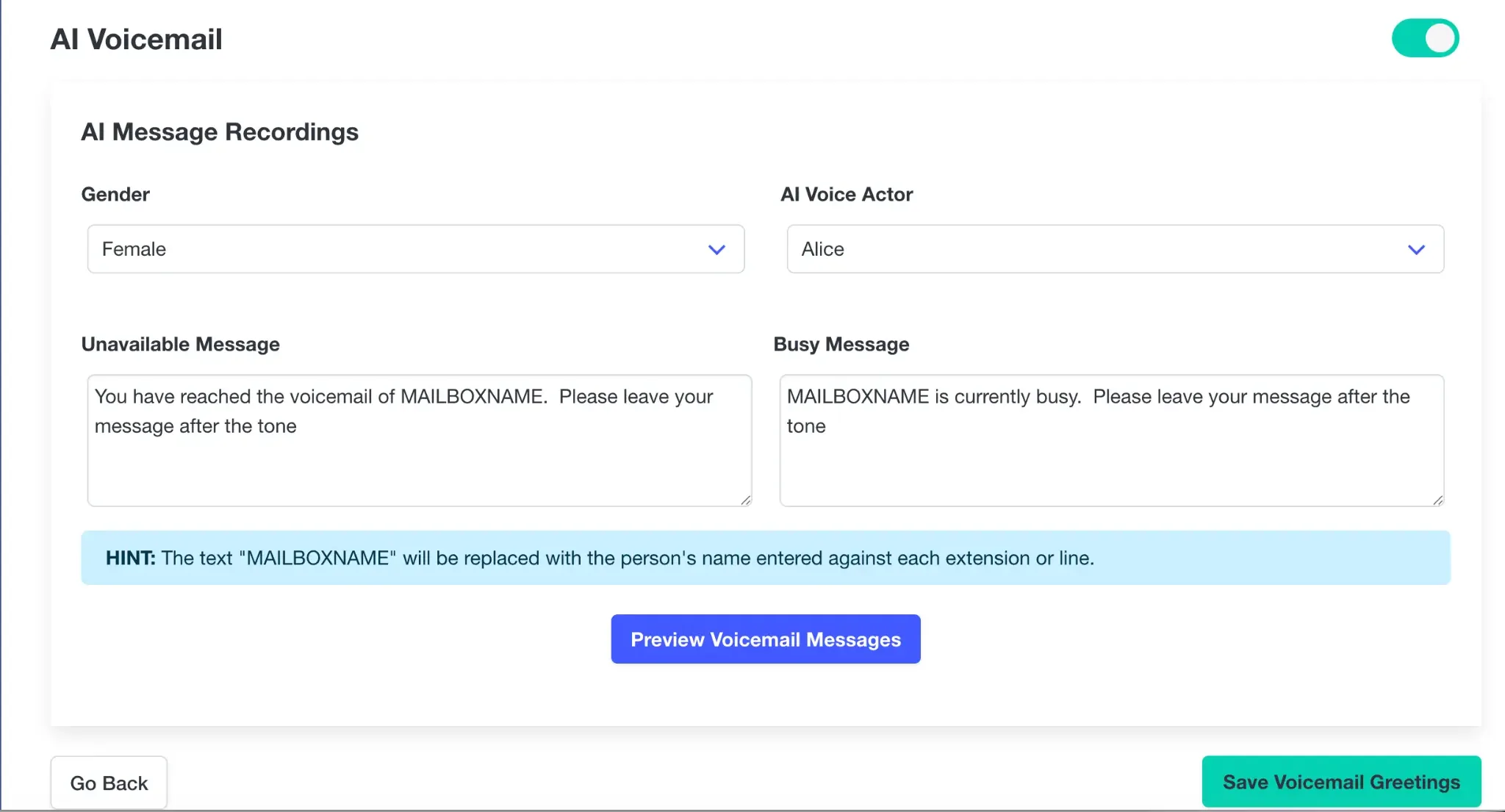
At the top right of the page you will see a toggle switch. Click it to enable AI Voicemail for your account. When the toggle is green and on, AI-generated greetings will be used across your extensions instead of any individually recorded messages.
Choose a Gender and AI Voice Actor
Under AI Message Recordings, use the Gender dropdown to select Female or Male, then choose a specific voice from the AI Voice Actor dropdown. The default voice is Alice. This voice will be used for all voicemail greetings across your organisation, so choose one that reflects your business's tone — professional, friendly, or neutral.
Write your Unavailable and Busy messages
There are two message fields to complete:
- Unavailable Message: Played when the extension is not answered — for example, when the person is away from their desk or outside business hours. The default script is: "You have reached the voicemail of MAILBOXNAME. Please leave your message after the tone."
- Busy Message: Played when the extension is active on another call. The default script is: "MAILBOXNAME is currently busy. Please leave your message after the tone."
The MAILBOXNAME placeholder: Wherever you type MAILBOXNAME in your script, the system will automatically replace it with the name entered against each extension or line. This means one script covers your entire team — each person hears their own name in the greeting without you needing to create individual recordings.
You can customise both scripts to match your business's style. Keep the wording clear and concise — callers typically hear the greeting for only a few seconds before the tone. Here are some example variations:
Unavailable — Formal
"You have reached the voicemail of MAILBOXNAME. Please leave your name, number, and a brief message, and we will return your call as soon as possible."
Unavailable — Friendly
"Hi, you've reached MAILBOXNAME. I'm not available right now, but leave me a message and I'll get back to you shortly."
Busy
"MAILBOXNAME is on another call at the moment. Please leave a message after the tone and we'll call you back."
Preview and save your greetings
Click Preview Voicemail Messages to hear how both the Unavailable and Busy greetings will sound before applying them. This lets you check the pacing, wording, and voice before your team or callers hear them. If anything sounds off, adjust the script — adding commas or full stops will create natural pauses — then preview again.
When you are satisfied, click Save Voicemail Greetings at the bottom right of the page. The AI-generated greetings will immediately apply to all extensions in your account. No individual setup is required per extension — the system handles personalisation automatically using each person's name.
Frequently Asked Questions About AI Voicemail
What is the MAILBOXNAME placeholder and how does it work?
MAILBOXNAME is a special placeholder you include in your voicemail script. When the system generates a greeting for a specific extension or line, it automatically replaces MAILBOXNAME with the name assigned to that extension in the portal. This means you write one script and every person in your organisation gets a personalised greeting with their own name — without any additional setup.
What is the difference between the Unavailable Message and the Busy Message?
The Unavailable Message plays when a call is not answered — for example, when the person is away from their desk, outside business hours, or has not picked up within the ring timeout. The Busy Message plays when the extension is already active on another call. Callers hear different greetings depending on the reason their call was not connected, which gives a more professional and informative experience.
Does AI Voicemail apply to all extensions automatically?
Yes. Once you save the AI Voicemail greetings, they apply across all extensions in your account. Individual staff members do not need to configure anything themselves. The system uses the name entered against each extension to personalise the greeting automatically.
Can individual users still record their own voicemail greeting?
When AI Voicemail is enabled, the AI-generated greetings take precedence. If you need a specific extension to use a custom recording, contact the Click2Call support team to discuss your options.
Can I choose a different voice for different departments?
The AI Voicemail configuration applies a single voice across all extensions. If you need different voices for different departments or teams, contact the Click2Call support team to discuss your requirements.
How do I make the greeting sound more natural?
Use punctuation to control pacing. Commas create a short pause; full stops create a longer pause. Read your script aloud before saving — if it sounds rushed or awkward when you say it, add punctuation to slow it down. The Preview Voicemail Messages button lets you hear the result before it goes live.
What happens if a person's name is not set on their extension?
If no name has been entered against an extension, the MAILBOXNAME placeholder may be read literally or left blank, depending on the system configuration. To ensure every greeting sounds correct, make sure all extensions have a name assigned in the portal before enabling AI Voicemail.
Can I update the voicemail script at any time?
Yes. Return to the AI Voicemail page, update the script, preview it, and save again. The new greeting will apply to all extensions immediately. This makes it easy to refresh your voicemail wording without any individual action required from your team.
How is AI Voicemail different from AI Speech?
AI Voicemail is specifically designed to manage voicemail greetings across all extensions in your account, with automatic personalisation using each person's name. AI Speech is a more general text-to-speech tool used to create individual audio recordings for use anywhere in your phone system — such as auto-attendant messages, on-hold announcements, or seasonal recordings.
Do I need to set up AI Voicemail for each user individually?
No. AI Voicemail is configured once at the account level by an administrator. The settings apply to all extensions automatically. This is one of the key advantages over the traditional approach of asking each team member to record their own greeting — it requires no action from individual users and ensures a consistent result across the entire organisation.
Related Guides
Still need help?
Our Australian support team is available to assist you.