
Setting Up Global Contacts and Speed Dials
The Global Contacts feature allows you to save names and numbers to your Click2Call account. Once saved, these contact names will automatically display on your phone screen when they call you. You can also assign a speed dial code to each contact, allowing you to call them quickly by dialling ** followed by their speed dial number from any phone on your account.
Log in to the portal
Navigate to portal.click2call.com.au and sign in with your account credentials.
Navigate to Global Contacts
Click Voice in the top navigation bar, then select External Contacts from the left-hand menu. This will open the Global Contacts and Speed Dials page.
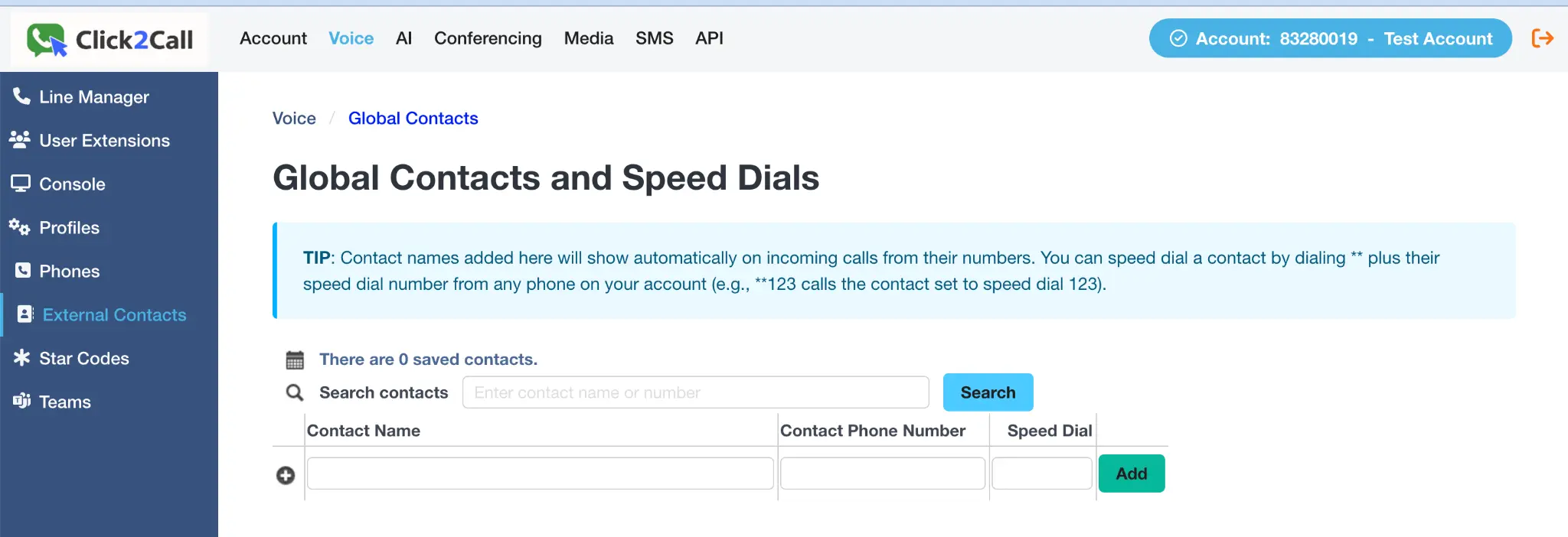
The Global Contacts and Speed Dials page
Add a contact manually
To add a single contact, use the form at the bottom of the contacts list. Enter the Contact Name, their Contact Phone Number, and an optional Speed Dial code (e.g., 123). Click the green Add button to save the contact.
Tip: Once a contact is saved, their name will automatically appear on your phone screen when they call you. To call them using their speed dial code, dial ** followed by the code (e.g., **123).
Import contacts via CSV (optional)
If you have a large list of contacts, you can import them all at once using a CSV file. Scroll down to the CSV Import section.
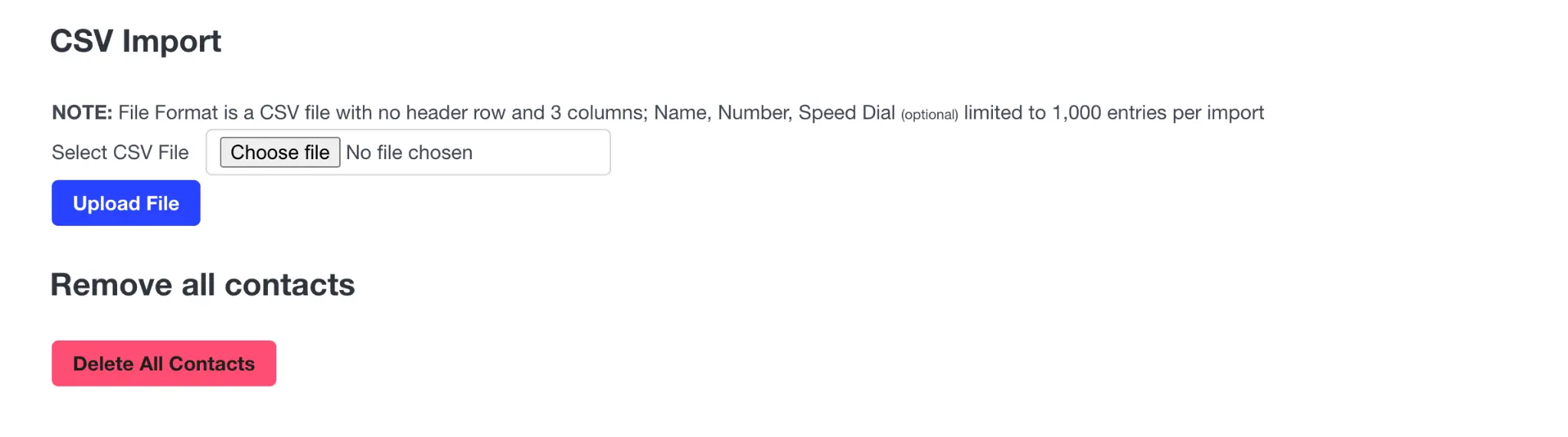
The CSV Import section
Your CSV file must have exactly 3 columns with no header row: Name, Number, and Speed Dial (optional). You can import up to 1,000 entries per file. Click Choose file to select your CSV, then click the blue Upload File button.
Manage your contacts
You can search for existing contacts using the search bar above the contacts list. If you need to clear your entire contact list, scroll to the bottom of the page and click the red Delete All Contacts button. This action cannot be undone.
Frequently Asked Questions
What is a Global Contact?
How do I use a speed dial code?
What format should my CSV file be in?
Can I delete all my contacts at once?
Related Guides
Still need help?
Our Australian support team is available to assist you.