
Setting Up Voicemail-to-Email
Voicemail-to-email sends you an email notification with an audio attachment every time someone leaves a voicemail on your extension. This guide shows you how to set it up.
Select Voicemail in Your Call Flow
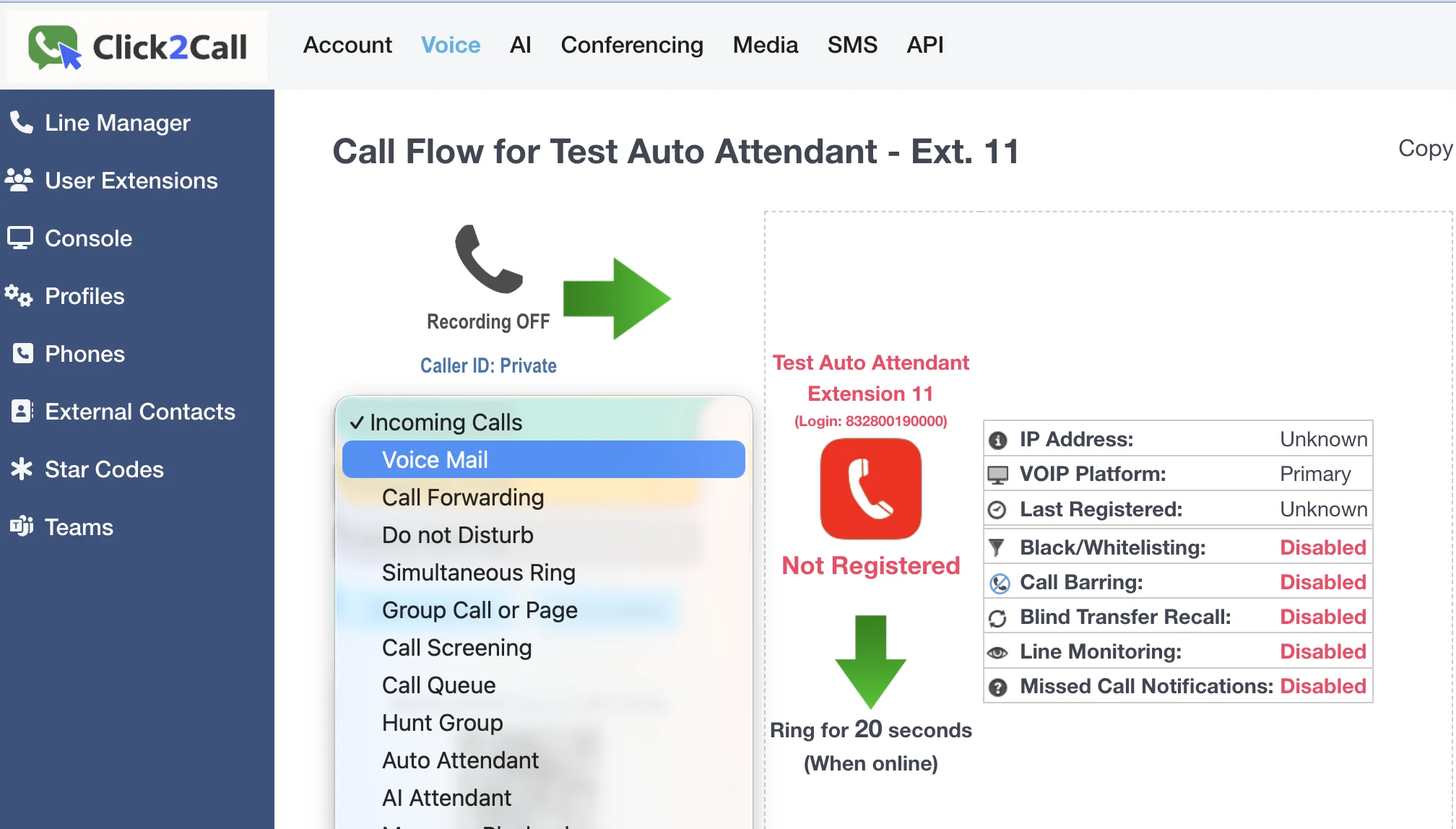
First, log in to the Click2Call portal. Navigate to the Voice tab and select the phone number or extension you want to configure from the Line Manager list. In the main call flow panel, click the Incoming Calls dropdown menu and select Voice Mail. This tells the system to direct unanswered calls to the voicemail service.
Configure Your Voicemail Settings
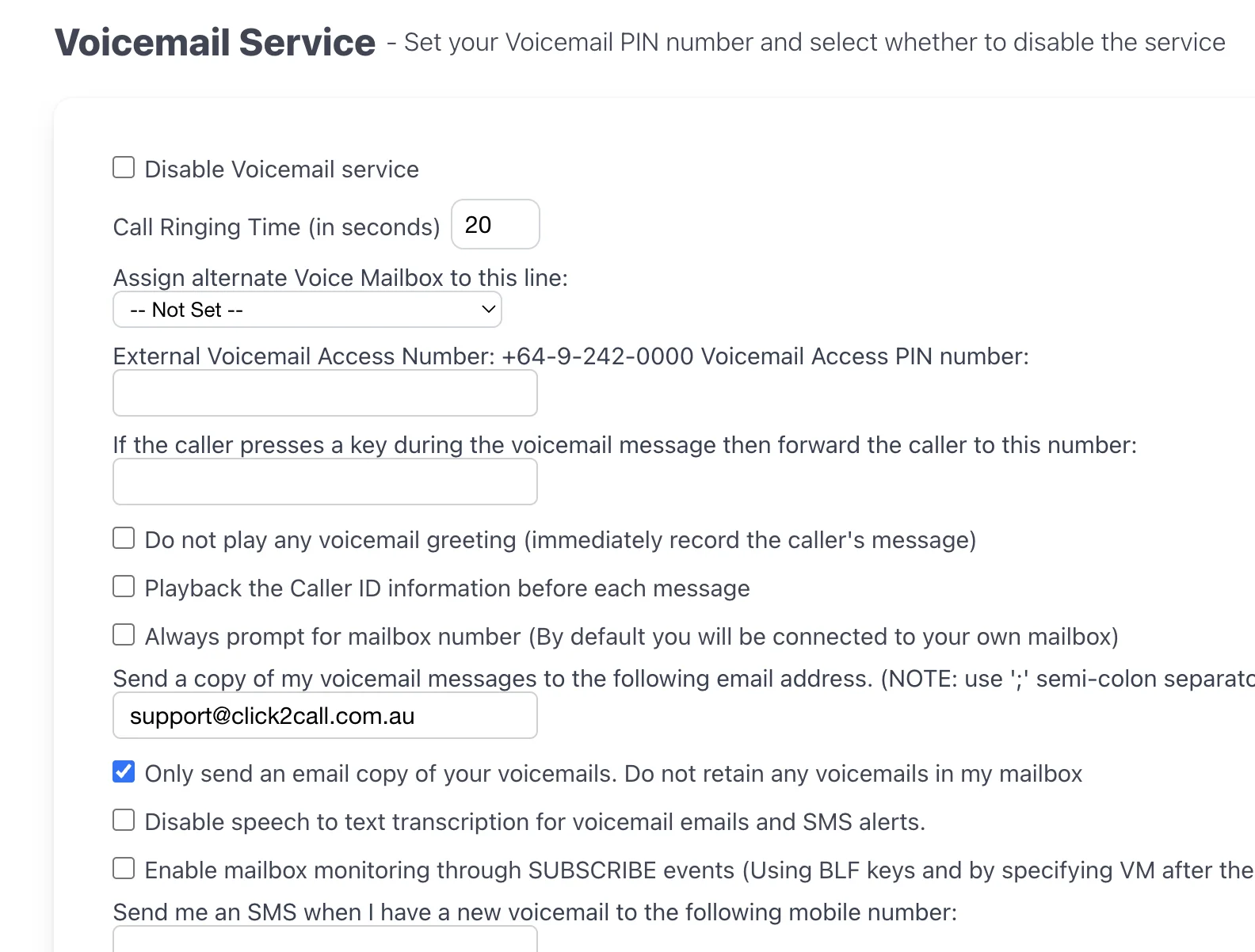
Once you select Voice Mail, the settings panel will appear. Here you can customise how your voicemail service works. We recommend the following at a minimum:
- Call Ringing Time: Set how long the phone rings before voicemail answers (e.g., 20 seconds).
- Voicemail Access PIN: Set a numeric PIN to access your messages from another phone.
- Send a copy to email: Enter one or more email addresses (separated by a semi-colon) to receive voicemail-to-email notifications.
- Only send an email copy: Tick this box if you do not want voicemails stored in the portal, only sent to your email. This is a popular option for keeping your mailbox clean.
There are many other advanced options available, such as speech-to-text transcription, SMS alerts, and automatically deleting old messages.
Set Up Your Voicemail Greeting
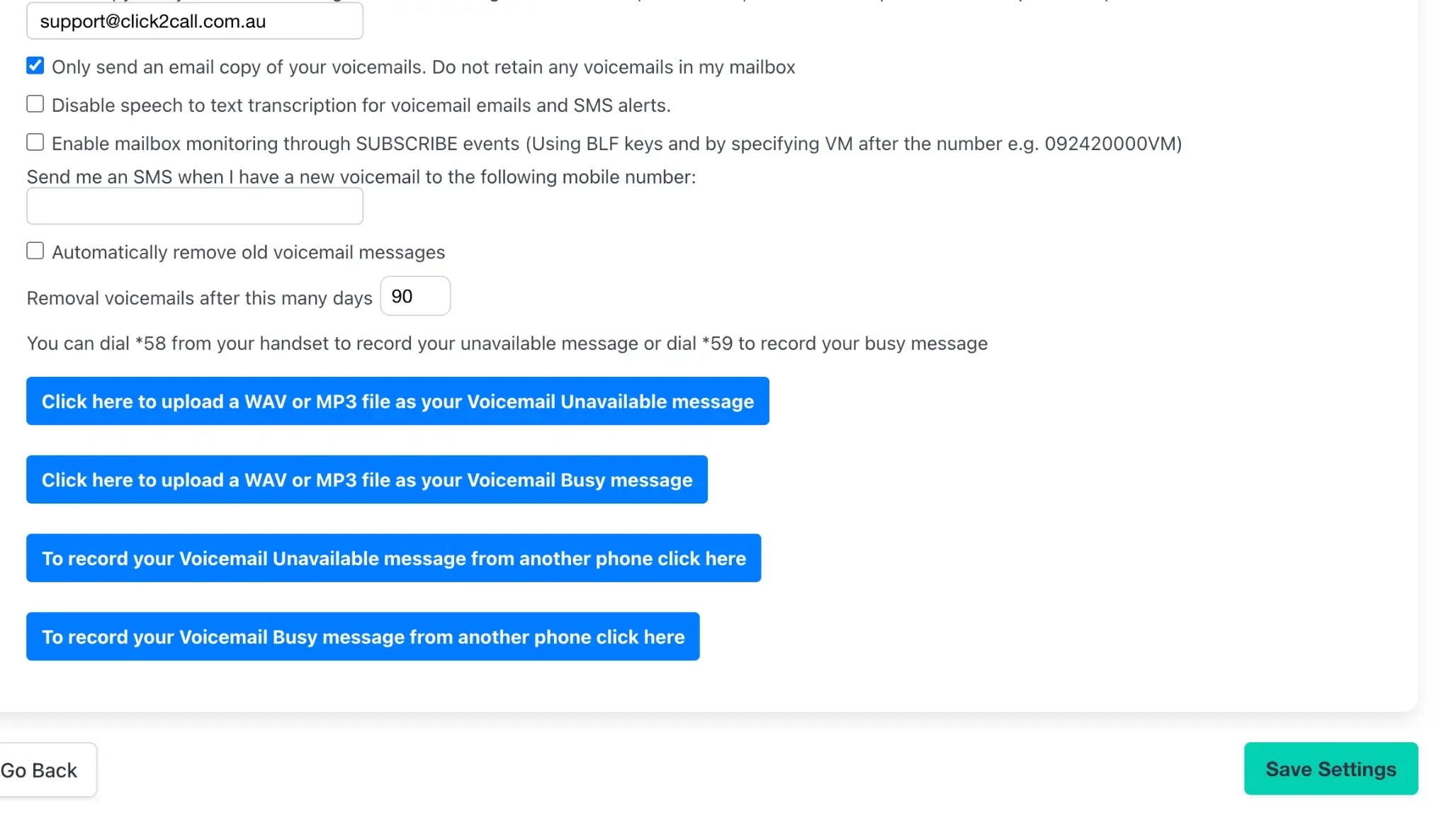
Scroll down to find the greeting options. You have two main choices:
- Record from your handset: Dial *58 from your connected phone to record your 'unavailable' message (when you don't answer) or *59 for your 'busy' message (when you are on another call).
- Upload a file: Click the blue buttons to upload a pre-recorded WAV or MP3 file from your computer. This is ideal for professional studio recordings.
Pro Tip: You can use our AI Speech tool to generate a high-quality, natural-sounding greeting file to upload here.
Save and Test
Once you are happy with your settings, click the green Save Settings button at the bottom. To test, call your number from a different phone (e.g., your mobile), let it ring out, and leave a short message. Within a few minutes, you should receive an email with the audio file attached.
Still need help?
Our Australian support team is available to assist you.