
Using AI Speech to Create Voice Recordings
AI Speech is Click2Call's text-to-speech tool. Type any message, choose a voice, and the system generates a professional audio recording instantly — ready to use as a voicemail greeting, auto-attendant announcement, after-hours message, or seasonal recording. No microphone, no re-recording, no waiting for someone to find a quiet room.
What is AI Speech used for?
AI Speech replaces the old way of creating phone system recordings — where someone would dial into a voicemail box and read a script out loud, often with background noise or multiple takes. With AI Speech, you type the message you want callers to hear, and the AI reads it in a natural, professional voice. Common uses include voicemail greetings, auto-attendant welcome messages, out-of-hours announcements, public holiday messages, and seasonal recordings such as Christmas closures.
Log in to the portal
Navigate to portal.click2call.com.au and sign in with your user credentials.
Navigate to AI Speech
In the top navigation bar, click AI. In the left-hand sidebar, click AI Speech. The Create AI Voice Recording form will load.
Choose a Gender and Voice Actor
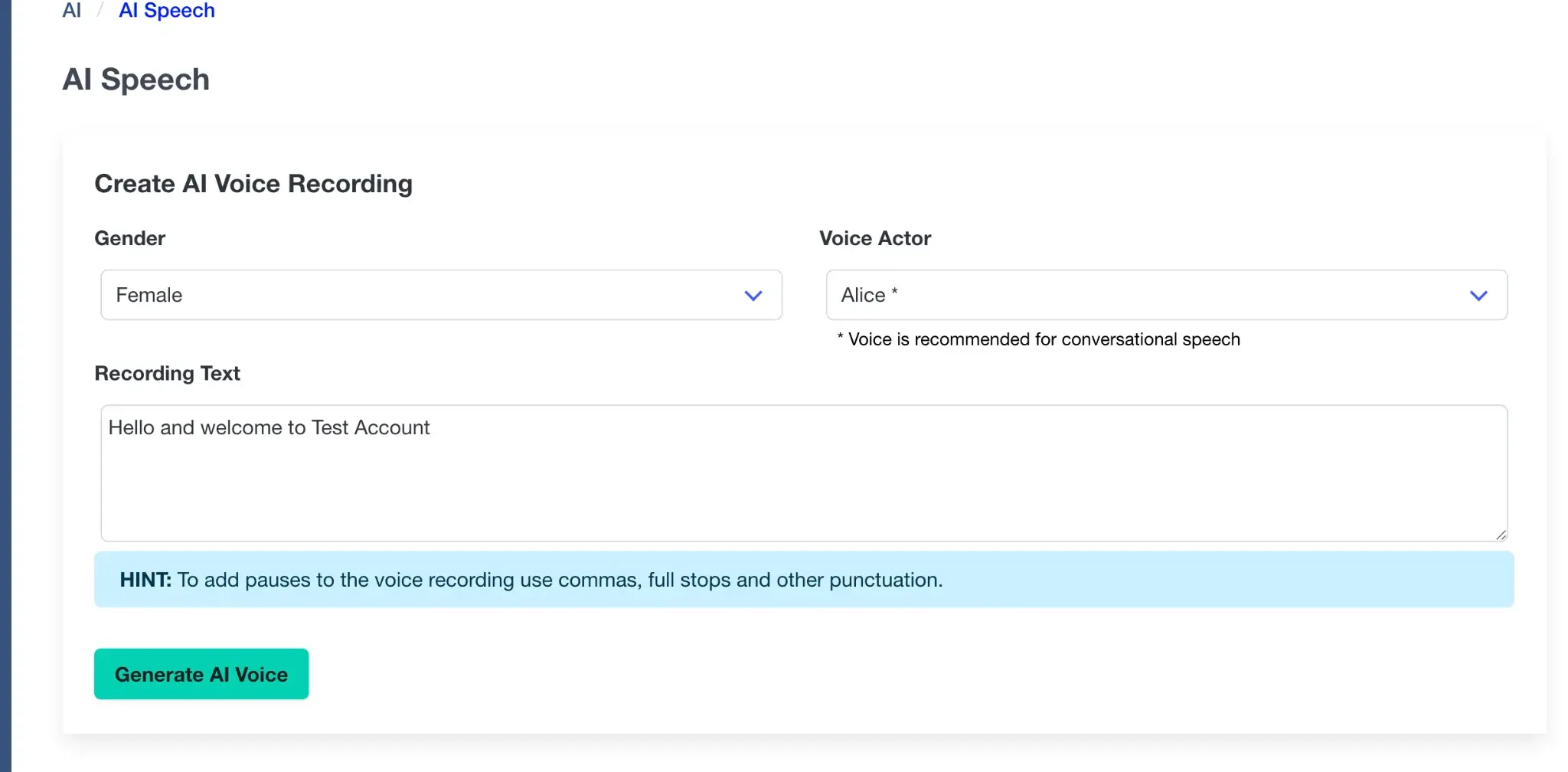
Use the Gender dropdown to select Female or Male. Then use the Voice Actor dropdown to choose the specific voice you want. The default voice is Alice, which is recommended for conversational speech and works well for most business recordings. Different voices suit different contexts — a warm, friendly voice works well for a welcome greeting, while a clear, measured voice suits an after-hours announcement.
Type your Recording Text
Type the message you want the AI to speak into the Recording Text field. Write it exactly as you want it to sound — the AI will read it word for word. Use commas, full stops, and other punctuation to control the pacing and add natural pauses between phrases. A comma produces a short pause; a full stop produces a longer one.
Below are some example scripts to get you started:
Voicemail Greeting
"You've reached the voicemail of Acme Plumbing. We're unable to take your call right now. Please leave your name, number, and a brief message, and we'll get back to you as soon as possible. Thank you."
After-Hours Message
"Thank you for calling. Our office is currently closed. Our business hours are Monday to Friday, 8am to 5pm. Please call back during business hours, or leave a message and we will return your call the next business day."
Christmas Closure
"Thank you for calling. Our office is closed for the Christmas and New Year period from the 24th of December, and will reopen on the 6th of January. We wish you a wonderful holiday season, and look forward to speaking with you in the new year."
Auto-Attendant Welcome
"Welcome to Acme Plumbing. For Sales, say Sales. For Support, say Support. Or stay on the line and we will connect you to our team."
Tip: To add pauses to the voice recording, use commas, full stops, and other punctuation. Reading your script aloud before generating it is a good way to check the pacing feels natural.
Generate and save the recording
Click the Generate AI Voice button. The portal will process your text and produce an audio file. You can preview the recording before saving it. Once you are happy with the result, save it to your account. The recording will then be available to assign to a voicemail box, auto-attendant, call flow, or any other feature in your phone system that plays an audio message to callers.
If the pacing or emphasis does not sound quite right, adjust the punctuation in your script and regenerate. Adding a comma before a key word will cause the AI to pause slightly, giving that word more weight. Splitting a long sentence into two shorter sentences with a full stop between them will also improve the natural flow of the recording.
Frequently Asked Questions About AI Speech
What can I use AI Speech recordings for?
AI Speech recordings can be used anywhere in your phone system that plays a pre-recorded message to callers. Common uses include voicemail greetings, auto-attendant welcome messages, after-hours announcements, on-hold messages, public holiday closures, and seasonal messages such as Christmas and Easter closures.
Do I need any special equipment or a microphone?
No. AI Speech is entirely text-based. You type your message in the portal and the AI generates the audio file. There is no need for a microphone, a recording studio, or a quiet room. This makes it easy to update your recordings at any time, from any device.
How do I make the recording sound more natural?
Punctuation controls the pacing. Commas create short pauses, full stops create longer pauses, and ellipses (...) can create a deliberate pause for effect. Write your script the way you would naturally speak it, using short sentences and plain language. Read it aloud yourself before generating it — if it sounds awkward when you say it, it will sound awkward when the AI reads it too.
Can I choose different voices?
Yes. The Voice Actor dropdown offers a selection of voices across both Female and Male genders. The default voice Alice is recommended for conversational speech. Try a few different voices with your script to find the one that best suits your business's tone.
How do I update a seasonal message, like a Christmas greeting?
Simply return to AI Speech, type your new message, generate a new recording, and replace the existing one in your call flow or voicemail settings. Because the process takes only a minute or two, you can update seasonal messages quickly each year without needing to call anyone or book a recording session.
Can I generate a recording in a language other than English?
The available languages depend on the voice actors offered in the portal. Type your script in the desired language and select a voice that supports it. Contact the Click2Call support team if you need assistance with a specific language.
Where does the generated recording get saved?
Once generated and saved, the recording is stored in your Click2Call account and becomes available to assign within your phone system — for example, as a voicemail greeting, an auto-attendant prompt, or an on-hold message in a call flow.
Can I regenerate a recording if I am not happy with it?
Yes. Simply adjust your script text — tweak the punctuation, rephrase a sentence, or try a different voice actor — and click Generate AI Voice again. You can generate as many versions as you need before saving the final result.
Is there a character limit on the Recording Text field?
The Recording Text field is suitable for standard phone system messages. For best results, keep recordings concise — callers generally prefer short, clear messages. A typical voicemail greeting or auto-attendant prompt is between 20 and 60 words.
How is AI Speech different from the AI Receptionist or AI Agents?
AI Speech is a recording tool — it generates a static audio file from text that you write. The AI Receptionist is a live call routing tool that listens to callers and transfers them to the right department. AI Agents are conversational voice agents that hold full, two-way conversations with callers. AI Speech simply creates the audio files that may be used within those and other phone system features.
Still need help?
Our Australian support team is available to assist you.