
How to Use Reports & Records
The Click2Call portal provides two separate tools for reviewing your call activity: Reports and Records. Reports give you a summarised view of call activity grouped by line, making them useful for reviewing usage across your team. Records give you a detailed, line-by-line view of every individual call, which is useful for investigating specific calls, verifying charges, or exporting raw data for analysis.
Reports vs Records — which one do you need?
| Reports | Records | |
|---|---|---|
| What it shows | Summarised call totals per line | Individual call records |
| Best for | Usage overviews, team reporting | Investigating specific calls, charge verification |
| Export format | CSV | CSV |
| Email scheduling | Yes (daily, weekly, monthly) | No |
Part 1 — Reports
Account → Reports • portal.click2call.com.au/account/reporting
Navigate to Account → Reports
In the left-hand sidebar, click Reports under the Account section. The page will load showing the Call Report by Line form. The breadcrumb at the top will show Account / Reports.
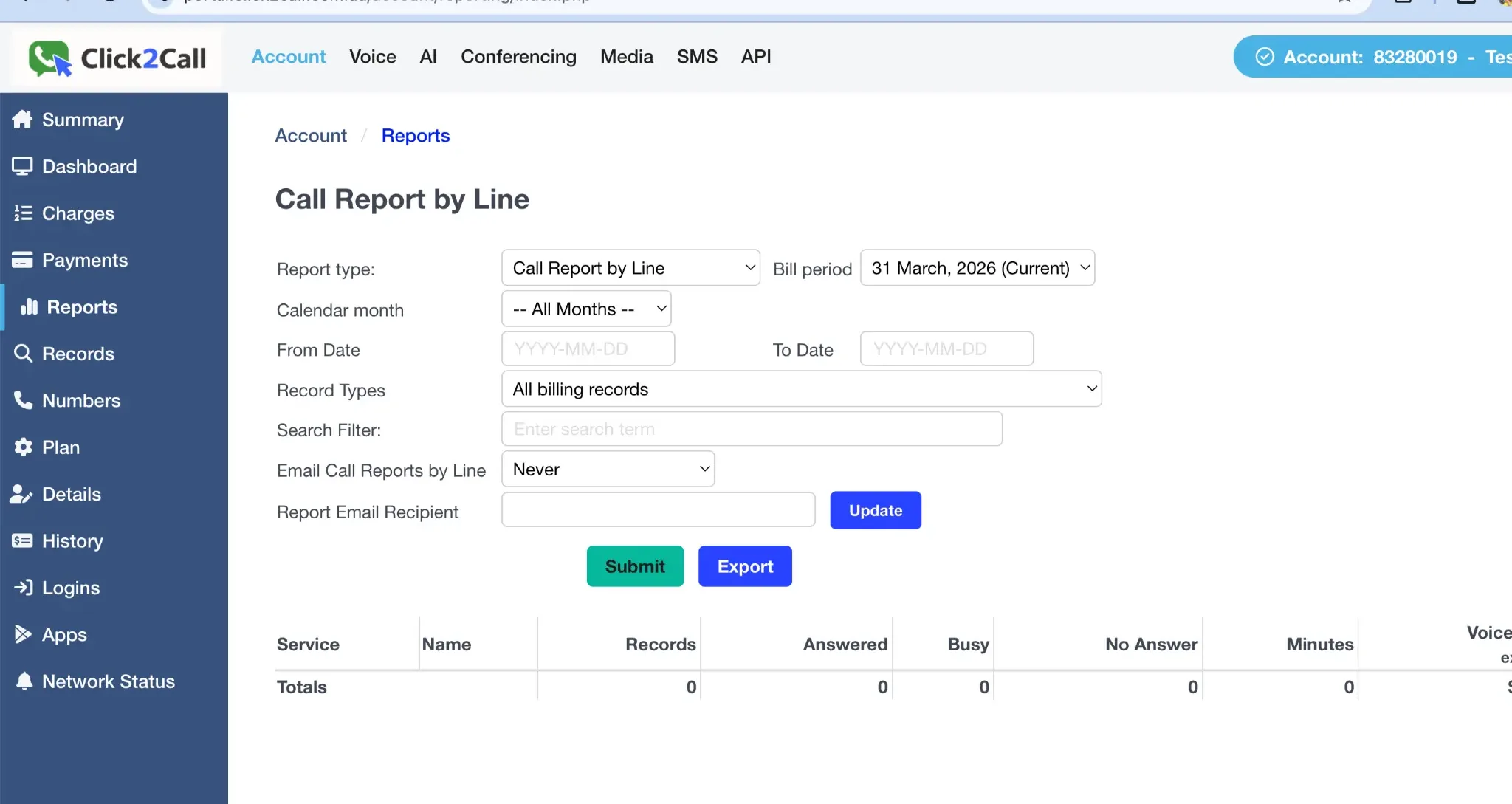
Configure the report filters
The Reports page contains several filters that control what data is included in your report. Here is a full explanation of every field.
| Field | Description |
|---|---|
| Report type | The type of report to generate. Call Report by Line is the default and shows call activity summarised per phone line or extension. |
| Bill period | The billing period to report on. Defaults to the current billing period. You can select a previous billing period from the dropdown to review historical data. |
| Calendar month | Filter results to a specific calendar month. Select All Months to include all months within the selected bill period. |
| From Date / To Date | Narrow the report to a specific date range within the selected bill period. Enter dates in YYYY-MM-DD format (e.g. 2026-03-01). Leave blank to include all dates in the period. |
| Record Types | Filter by the type of billing record to include. Options include All billing records, inbound calls, outbound calls, or specific call types. Use this to isolate particular types of activity. |
| Search Filter | A free-text search field. Enter a phone number, extension name, or partial string to filter results to matching lines only. |
| Email Call Reports by Line | Set a schedule to automatically email this report. Options include Never, daily, weekly, or monthly. When set, the report will be emailed to the address in the Report Email Recipient field on the selected schedule. |
| Report Email Recipient | The email address to send scheduled reports to. Click Update to save the email address after entering it. |
Generate or export the report
Once you have configured your filters, use one of the two action buttons:
-
Submit — displays the report results on screen in the table below the form. The table shows each line with columns for Service, Name, Records, Answered, Busy, No Answer, Minutes, and Voice charges.
-
Export — downloads the report as a CSV file without displaying it on screen. Use this when you want to open the data in a spreadsheet application such as Excel or Google Sheets.
Tip: The Totals row at the bottom of the on-screen report shows the sum of all lines. This is useful for quickly seeing your total call volume and minutes for the selected period.
Part 2 — Records
Account → Records • portal.click2call.com.au/account/billingrecords
Navigate to Account → Records
In the left-hand sidebar, click Records under the Account section. The page will load showing the Billing Records search form. Unlike Reports, this page shows every individual call as a separate row, giving you a granular view of all activity on your account.
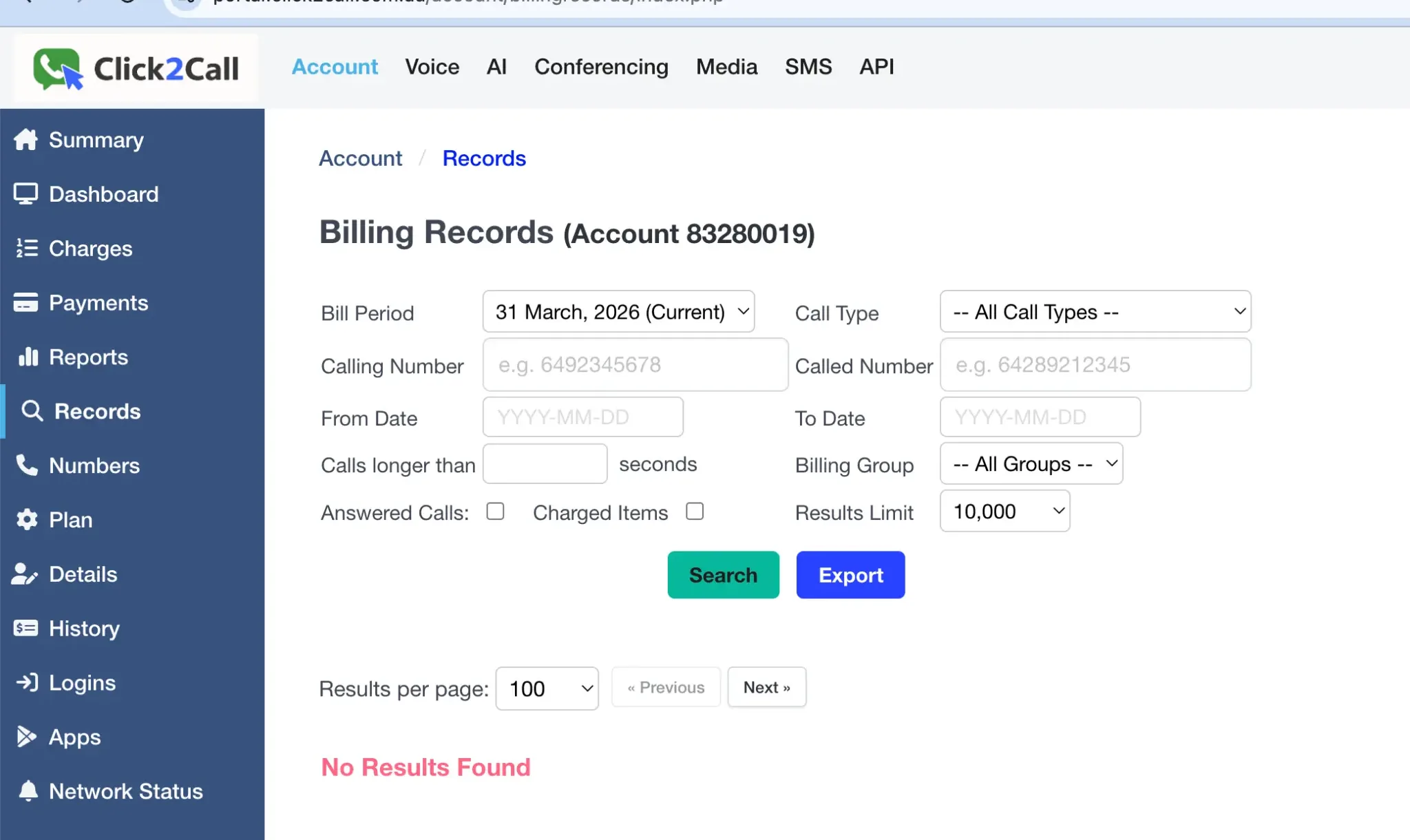
Configure the search filters
The Billing Records page has a comprehensive set of filters to help you find exactly the calls you are looking for. Here is a full explanation of every field.
| Field | Description |
|---|---|
| Bill Period | The billing period to search within. Defaults to the current period. Select a previous period from the dropdown to search historical records. |
| Call Type | Filter by the type of call — for example, all call types, inbound, outbound, or specific call categories. Useful for isolating inbound-only or outbound-only activity. |
| Calling Number | The number that made the call (the originating number). Enter a full or partial number to search for calls from a specific caller. Format: 6492345678. |
| Called Number | The number that was dialled (the destination number). Enter a full or partial number to search for calls to a specific number. Format: 64289212345. |
| From Date / To Date | Narrow results to a specific date range. Enter dates in YYYY-MM-DD format. Leave blank to search across the entire selected bill period. |
| Calls longer than (seconds) | Filter out very short calls by entering a minimum duration in seconds. For example, entering 30 will only show calls that lasted 30 seconds or longer. Useful for excluding unanswered or very brief calls from your results. |
| Billing Group | If your account uses billing groups to separate lines or departments, select a specific group to filter results to that group only. Defaults to All Groups. |
| Answered Calls | When ticked, only calls that were answered will be included in the results. Untick to include all calls regardless of whether they were answered. |
| Charged Items | When ticked, only calls that incurred a charge will be included. This is useful for reviewing exactly which calls contributed to your bill. |
| Results Limit | The maximum number of records to return per search. Defaults to 10,000. If your account has a very high call volume, you may need to narrow your date range to stay within this limit, or use the Export function to download the full dataset. |
Search or export billing records
Once you have set your filters, use one of the two action buttons:
-
Search — displays matching call records on screen in a paginated table. Use the Results per page dropdown and the Previous / Next buttons to navigate through results.
-
Export — downloads the matching records as a CSV file. The export respects all active filters, so you will only receive the records that match your search criteria.
Note: If the search returns No Results Found, check that the selected Bill Period contains activity and that your filters are not too restrictive. Try removing the date range or unchecking the Answered Calls and Charged Items filters to broaden the search.