
How to View Account History & Download Invoices
The Account History page is where you can view every transaction on your Click2Call account and download PDF receipts or invoices for your records. This is useful for bookkeeping, expense claims, and providing proof of payment to your accountant or finance team.
What you will find in Account History
- Every payment, top-up, and charge on your account listed in date order.
- A Reference number for each transaction.
- A PDF download icon to save a receipt or invoice for each transaction.
- An Export CSV option to download your full transaction history as a spreadsheet.
Log in to the portal
Go to portal.click2call.com.au and sign in with your account credentials. You will need to be the account administrator or have a user role with billing access to view transaction history.
Navigate to Account → History
In the left-hand sidebar, click History under the Account section. The breadcrumb at the top of the page will show Account / Account History confirming you are in the right place.
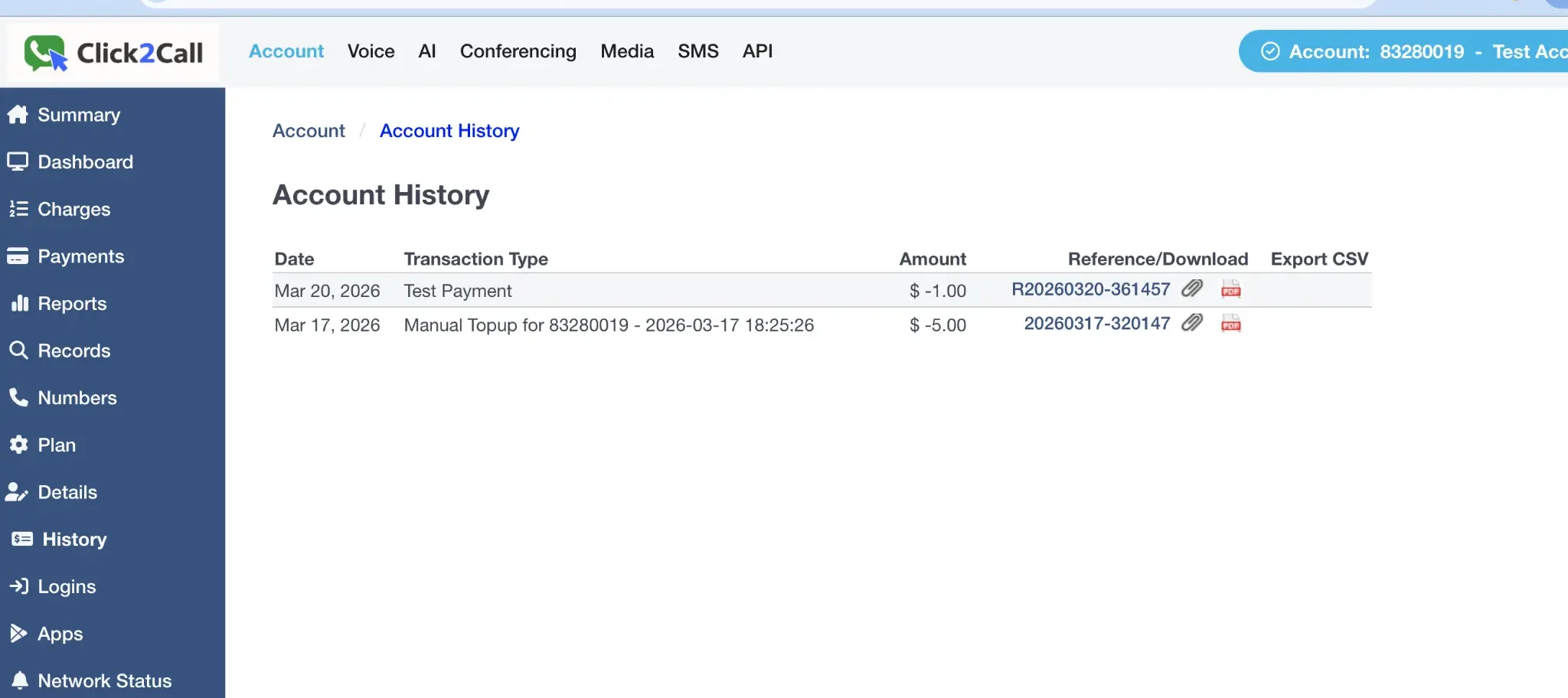
Understanding the Account History table
The table lists every transaction on your account in reverse chronological order (most recent first). Here is what each column means.
| Column | Description |
|---|---|
| Date | The date the transaction was processed on your account. |
| Transaction Type | A description of what the transaction was — for example, a card payment, a manual top-up, a monthly line fee charge, or a credit adjustment. |
| Amount | The dollar value of the transaction in AUD. Negative values (shown as $ -x.xx) indicate a debit from your account balance. Positive values indicate a credit added to your account. |
| Reference / Download | The unique reference number for the transaction. Click the PDF icon (red) next to the reference to download a receipt as a PDF file. Click the paperclip icon to copy or view the direct link to the receipt. |
| Export CSV | Click this link on any row to download your complete transaction history as a CSV spreadsheet file, suitable for importing into accounting software such as Xero, MYOB, or QuickBooks. |
Download a receipt or invoice
To download a receipt for a specific transaction:
- Locate the transaction in the table using the Date and Transaction Type columns.
- In the Reference/Download column, click the red PDF icon on the right-hand side of the reference number.
- Your browser will download the receipt as a PDF file. The file name will include the transaction reference number for easy identification.
Tip: If you need to provide invoices to your accountant on a regular basis, use the Export CSV option to download all transactions at once rather than downloading individual PDFs.
Export your full transaction history as a CSV
The CSV export gives you a complete record of all transactions on your account in a single file. This is the fastest way to provide a full billing history to your finance team or accountant.
- On the Account History page, click the Export CSV link in the last column of any row.
- Your browser will download a
.csvfile containing all transactions. - Open the file in Microsoft Excel, Google Sheets, or your accounting software to view, filter, and sort the data.
Note: The CSV export includes all transactions — there is no date range filter. If you need to filter by date, open the file in a spreadsheet application and use the built-in filter tools.