
Viewing Call Recordings
If call recording is enabled on your account, all calls are automatically recorded and stored in the portal. This guide shows you how to find and listen to them.
Important: Call recording is disabled by default and must be manually enabled for each phone number or extension you wish to record. All parties must be aware that the call is being recorded to comply with Australian law.
Part 1: How to Enable Call Recording
Navigate to Call Recording Settings
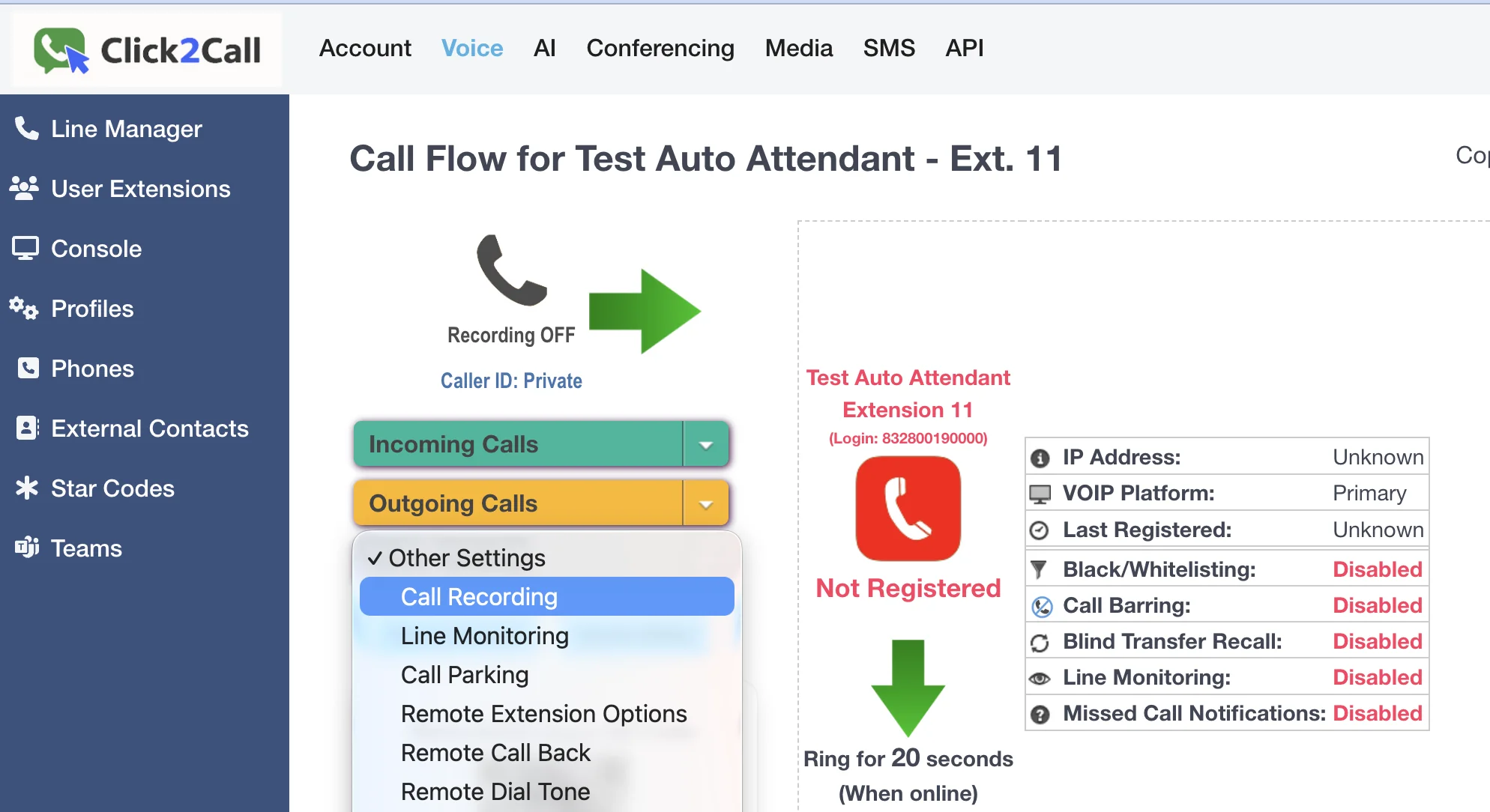
Log in to the portal, go to the Voice tab, and select the line you want to configure. Click the Other Settings dropdown and choose Call Recording.
Configure and Enable Recording
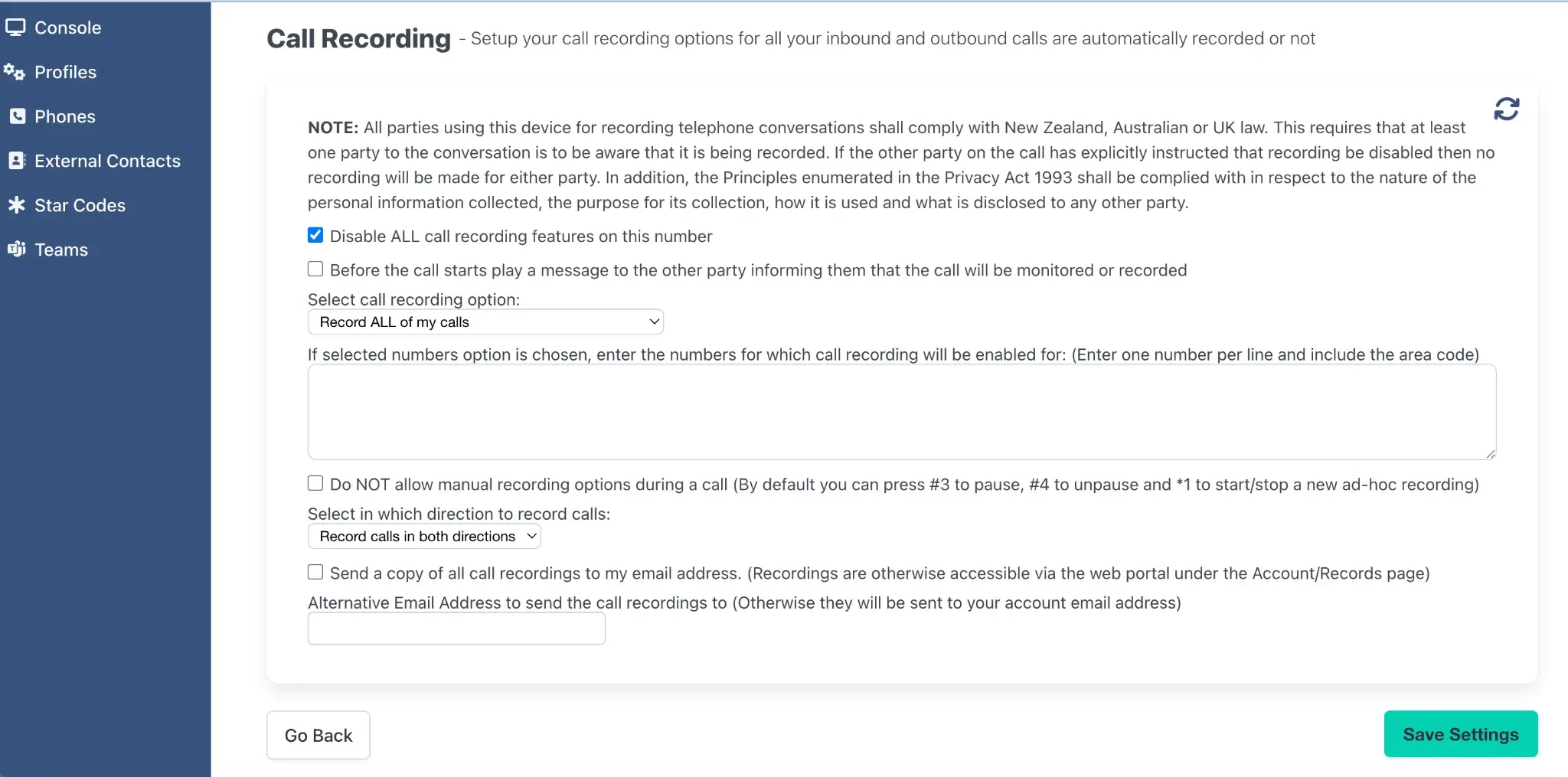
In the Call Recording panel, untick the 'Disable ALL call recording' box. Choose your recording options, such as recording all calls or playing a message to the other party. You can also enter an email address to have a copy of all recordings sent to you automatically. Click Save Settings when done.
Part 2: How to View and Download Recordings
Navigate to Billing Records
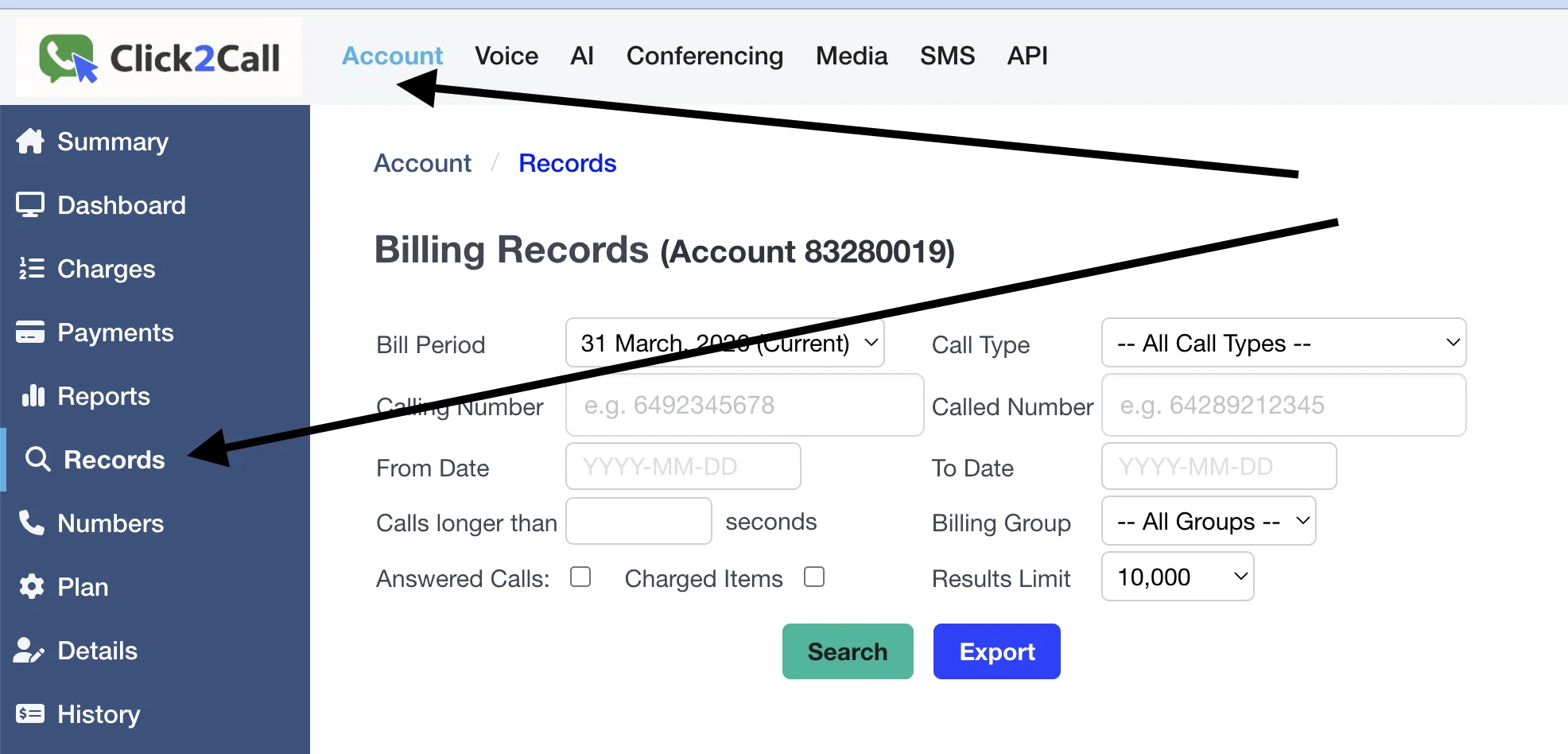
In the portal, click the Account tab, then select Records from the left-hand menu. This will take you to the Billing Records page where all your call history is stored.
Find, Play, and Download Your Recording
Use the filters to find the call you're looking for. On the far right of the call log entry, you will see a set of icons. These allow you to manage the recording for that specific call.
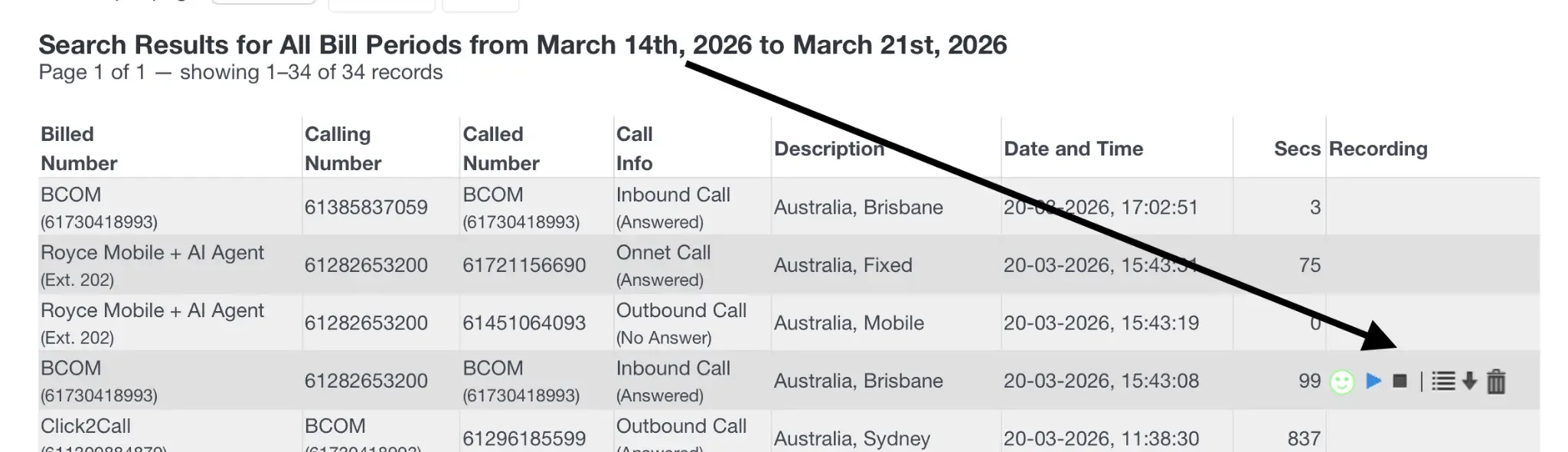
Here is what each icon does, from left to right:

- Smiley Face: View AI-powered sentiment analysis for the call.
- Play/Stop: Listen to the call recording directly in your browser.
- List Icon: View the full AI-generated call transcription.
- Download: Download the call recording as an MP3 audio file.
- Trash Can: Permanently delete the recording.
Related Guides
Still need help?
Our Australian support team is available to assist you.